Proximity sensors are ubiquitous in modern electronics, silently working behind the scenes in our smartphones, tablets, industrial machinery, and automotive systems. Their primary function is to detect the presence or absence of nearby objects without physical contact. When they fail, it can lead to a cascade of frustrating issues, from a phone screen that won't turn off during calls to automated production lines grinding to a halt. Understanding the signs of a failing sensor and knowing the potential fixes can save time, money, and significant inconvenience.
The most common symptom of a damaged proximity sensor in a smartphone is erratic screen behavior during phone calls. You may find that the screen remains lit while the phone is against your ear, leading to accidental cheek-taps that mute the call, open apps, or even hang up. Conversely, the screen might turn off prematurely and refuse to wake up, forcing you to use the power button to end the call. Other indicators include the failure of features like auto-brightness adjustment or the persistent illumination of notification LEDs that should only activate when your hand is near. In industrial settings, a faulty sensor might cause machinery to stop unexpectedly, fail to detect objects on a conveyor belt, or trigger false alarms, disrupting entire workflows.
Diagnosing the problem is the first critical step. Before assuming hardware failure, it's essential to rule out software glitches. Start with a simple restart of your device. If the issue persists, try booting into safe mode (on Android devices) to see if a third-party app is interfering with the sensor's operation. You can also use built-in diagnostic tools or download reputable hardware testing apps from official app stores. These apps often have a "sensor test" section that will display real-time data from your proximity sensor. Wave your hand over the sensor; the values should change rapidly. If the readings are static, unresponsive, or consistently show "0 cm" or "far" regardless of object proximity, the sensor is likely malfunctioning.
For smartphones, physical inspection is also wise. Check the area around the front-facing camera and earpiece where the sensor is usually located. A dirty screen protector, especially a thick or poorly aligned one, can obstruct the sensor's infrared beam. Similarly, accumulated dust, lint, or debris in the earpiece grille can block the sensor. Carefully clean the area with a soft, dry, lint-free cloth. In some cases, moisture damage or a previous drop can dislodge or physically break the tiny sensor component.
If basic troubleshooting fails, the solutions become more involved. For software issues, a factory reset can be a last resort, but remember to back up your data first. This will eliminate any deep-seated software corruption. If the problem remains after a reset, the evidence strongly points to hardware failure.
Replacing a proximity sensor is a hardware repair. In modern devices, the proximity sensor is often part of a larger front assembly module, bundled with the front-facing camera and the ambient light sensor. For the average user, self-repair is challenging due to the miniaturized components and the risk of damaging other parts like the display ribbon cables or the battery. Seeking professional repair from a certified technician is the most reliable course of action. They have the proper tools and expertise to open the device safely and install a genuine or high-quality replacement part.
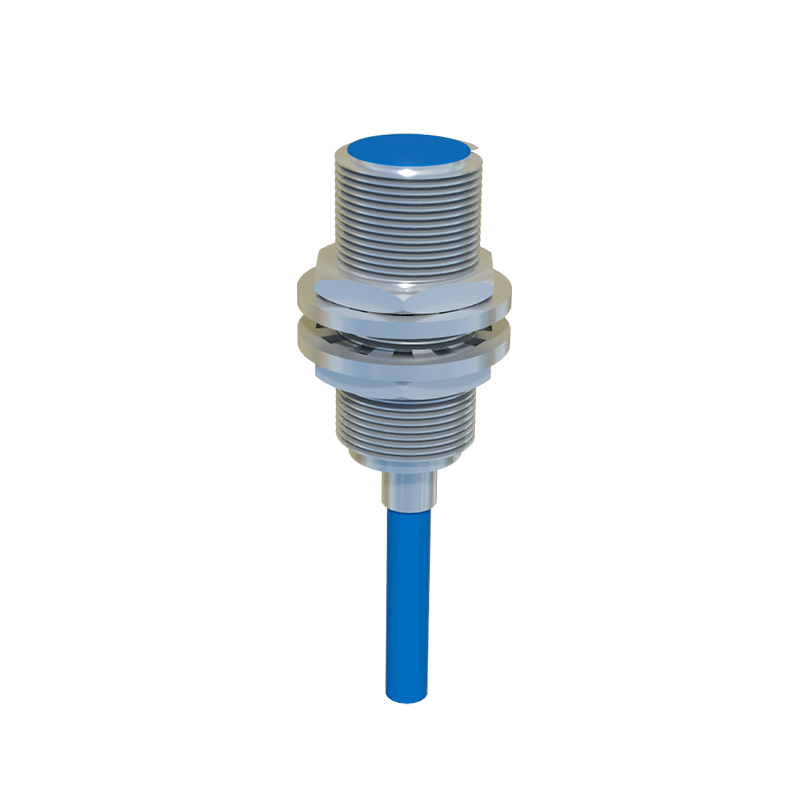
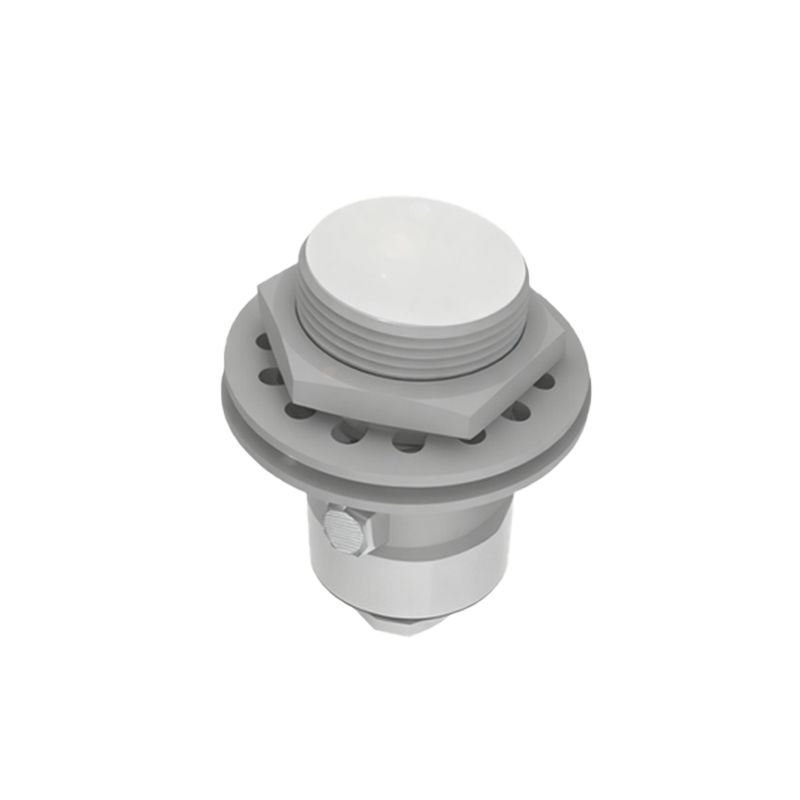
In industrial applications, the diagnostic process is more systematic but follows similar principles. Technicians will use multimeters and oscilloscopes to check the sensor's output signal against the manufacturer's specifications. They will inspect for physical damage, corrosion on connectors, or misalignment. Environmental factors like excessive vibration, temperature extremes, or buildup of oil and metal shavings are common culprits. Cleaning, recalibrating, or realigning the sensor might solve the problem. If not, replacement with a sensor rated for the specific environmental conditions is necessary.
Prevention is always better than cure. Using a well-fitted case and a high-quality screen protector can protect your phone's sensors from impacts and scratches. Avoid exposing devices to excessive moisture or dust. In industrial environments, adhering to regular maintenance schedules, keeping sensors clean, and ensuring they are installed correctly according to guidelines can dramatically extend their operational life.
A faulty proximity sensor is more than a minor annoyance; it can degrade the functionality of your device or the efficiency of a machine. By methodically diagnosing the issue—starting with software checks and simple cleaning, then moving to professional hardware assessment—you can accurately identify the root cause and implement the correct, lasting solution.