Proximity sensors are integral components in modern smartphones and various industrial devices, silently performing their function of detecting nearby objects without physical contact. When a proximity sensor test fails, it can lead to a cascade of issues, from frustrating phone calls where the screen stays dark to malfunctions in automated machinery. Understanding the common causes and systematic troubleshooting steps is crucial for resolving these failures efficiently.
A failed proximity sensor test typically manifests in specific ways. On a smartphone, you might notice the screen not turning off during calls, leading to accidental cheek-touches that mute calls or activate other functions. Conversely, the screen might remain black after pulling the phone away from your ear, forcing you to manually wake it. In industrial settings, a failure might cause a conveyor belt to stop unexpectedly or a safety door to remain unlocked. The first step in diagnosis is to run the device's built-in hardware test, often found in secret diagnostic menus (e.g., dialing #0on some Samsung phones or using the "Cit" test on Xiaomi devices). A confirmed failure here indicates a hardware or fundamental software issue.
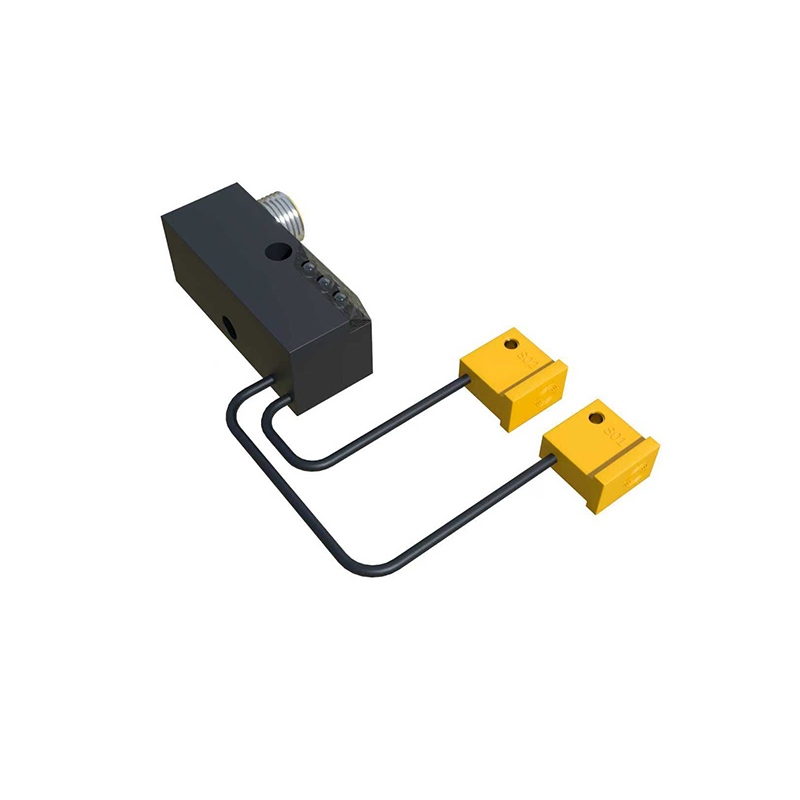
The root causes of proximity sensor failure can be broadly categorized into software and hardware problems. On the software side, a recent operating system update or a newly installed app can sometimes conflict with sensor drivers or permissions. A corrupted system cache is another frequent software culprit. Hardware issues are more varied. The most common is physical obstruction. A poorly fitted screen protector, a case that encroaches on the sensor area, or an accumulation of dust and lint in the speaker grille (where the sensor is often located) can easily block the sensor's infrared (IR) light. More severe hardware problems include a loose or disconnected sensor flex cable, damage from liquid exposure, or a completely failed sensor component due to aging or physical impact.
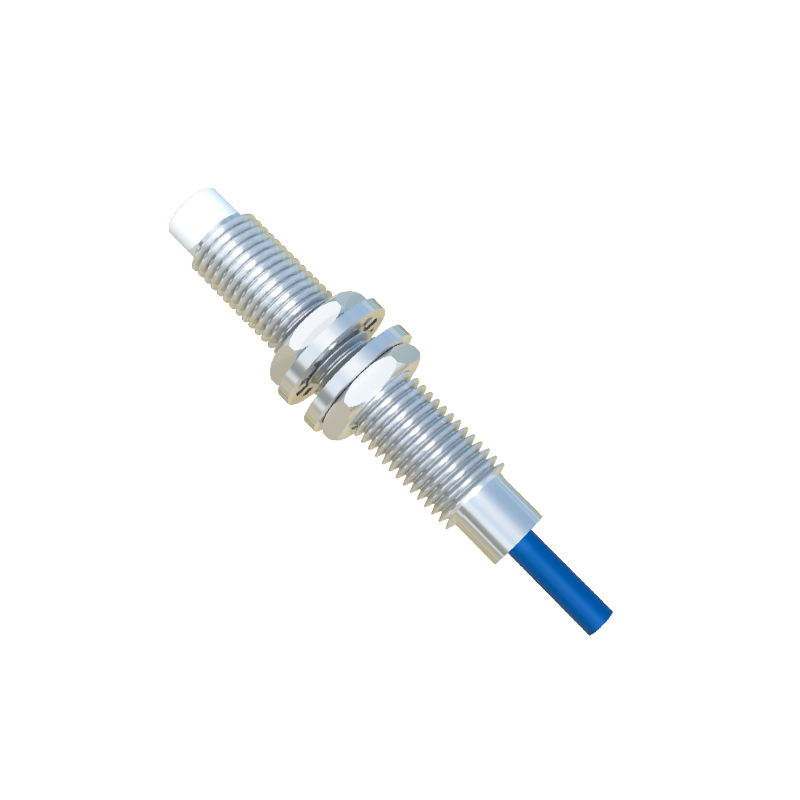
A logical, step-by-step troubleshooting approach is recommended. Begin with the simplest solutions. First, perform a thorough visual inspection. Clean the area around the earpiece and front camera with a soft, dry brush or microfiber cloth. Remove any screen protector or case and test again. Next, address software glitches. Restart your device—this simple step can clear temporary software conflicts. If the problem persists, boot the device in Safe Mode (which disables third-party apps). If the sensor works in Safe Mode, a recently installed app is likely the cause; uninstall apps one by one to identify the offender. Clearing the system cache partition (a process varying by device model) can resolve deeper cache corruption without deleting personal data.
If software fixes yield no results, the issue is likely hardware-related. For smartphones, after ensuring it's clean and unobstructed, consider a factory reset as a last software resort. Crucially, back up all data before proceeding. If a factory reset does not solve the problem, the diagnosis points firmly to hardware. For industrial sensors, consult the manufacturer's manual for calibration procedures. Environmental factors like extreme ambient light or highly reflective surfaces near the sensor can also cause false readings; ensure the operating environment is within specified parameters.
Professional repair is often necessary for internal hardware faults. This may involve reseating the sensor's flex cable connector, replacing the sensor itself, or, in smartphones, replacing the entire front assembly (which often houses the sensor, earpiece, and front camera as a single module). Attempting such repairs without proper tools and expertise can cause further damage. For critical industrial systems, always rely on certified technicians.
Preventive measures can mitigate future failures. Use only well-fitted screen protectors with precise cutouts. Keep the device clean and avoid exposing it to excessive dust or moisture. Be cautious with system updates, waiting a few days to see if any widespread sensor issues are reported. For industrial sensors, adhere to regular maintenance schedules as outlined by the manufacturer.
In conclusion, a failing proximity sensor test, while inconvenient, is a solvable problem. By methodically eliminating potential causes—starting with obstructions and software, then moving to more complex hardware faults—users and technicians can accurately diagnose and rectify the issue, restoring the seamless, automatic functionality that proximity sensors are designed to provide.