Understanding the Photoelectric Sensor Button Interface
The photoelectric sensor button is a critical interface for configuring detection parameters in industrial automation systems. As an electrical engineer, you must first identify the sensor model and its button layout. Typically, the button is a tactile switch with multiple functions, such as setting sensitivity, delay time, and output mode. Refer to the manufacturer's datasheet to confirm the button's default state and the sequence for parameter entry. Avoid applying excessive force, as this can damage the internal components.
Initial Setup: Entering Parameter Mode
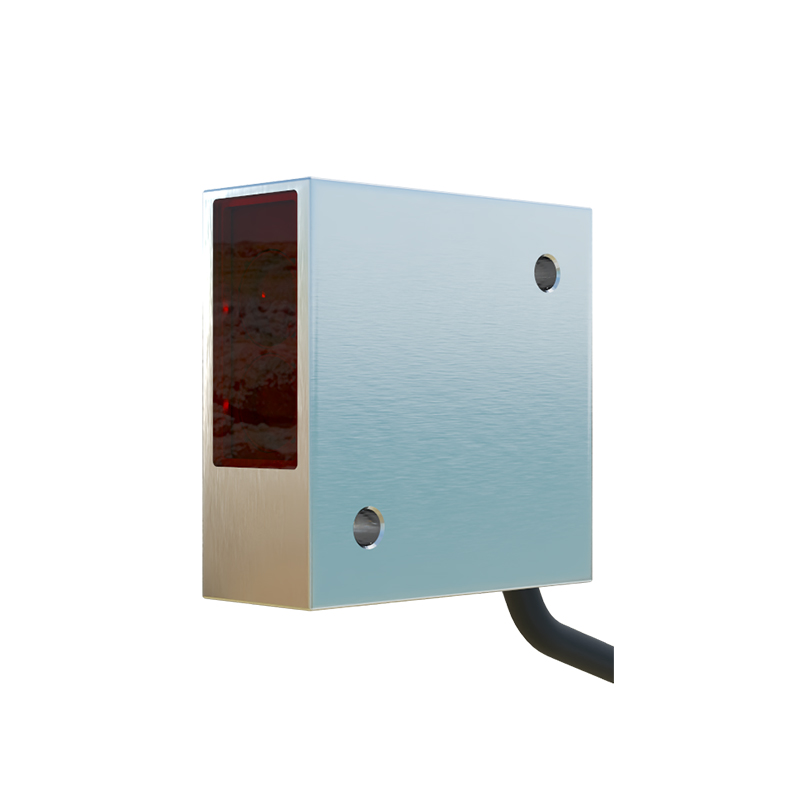
To begin, power the sensor and ensure it is in a stable environment free from ambient interference. Press and hold the button for 3 seconds until the LED indicator blinks rapidly. This signals entry into parameter setting mode. The sensor will cycle through different parameter types, such as NPN/PNP output selection, light-on/dark-on mode, and detection range. Use short presses to toggle between settings. For example, a single press may switch from Light-On (L.ON) to Dark-On (D.ON). Document each step for traceability.
Configuring Sensitivity and Detection Range
Sensitivity adjustment is vital for accurate object detection. While in parameter mode, press the button twice to access the sensitivity setting. The LED will flash in patterns indicating low, medium, or high sensitivity. Use a test object to verify detection. For longer ranges, increase sensitivity; for high-precision tasks, reduce it to avoid false triggers. In some models, the button allows incremental adjustments via long presses (e.g., holding for 2 seconds increases sensitivity by 5%). Always calibrate with the target material in mind, as reflective surfaces require different settings.
Setting Delay Time and Output Logic
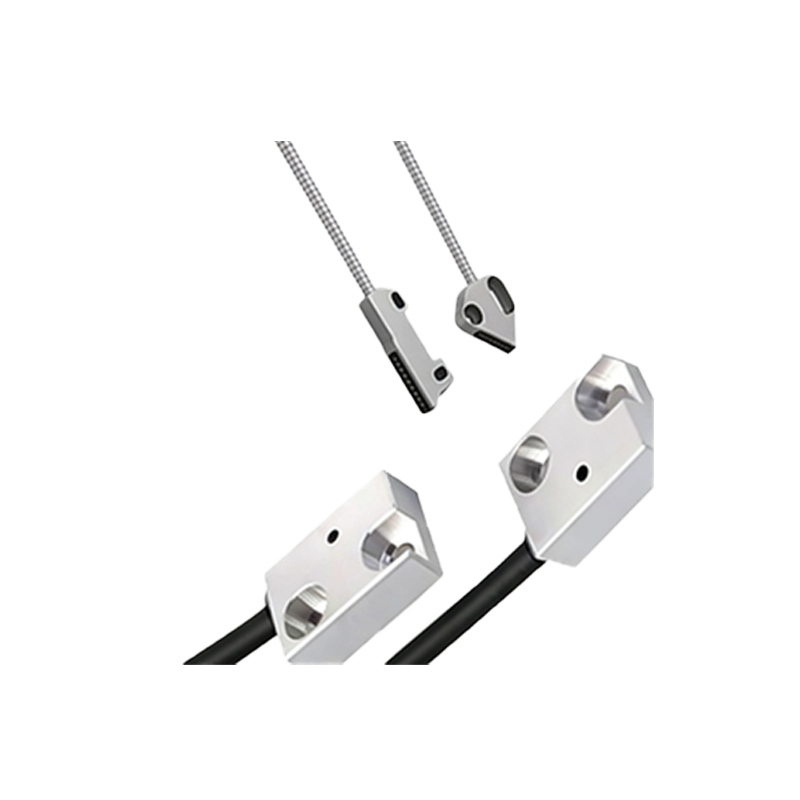
Many photoelectric sensors include adjustable delay timers to filter noise or synchronize with conveyor systems. Press the button three times to enter the delay setting submenu. Options may include ON-delay (0.1–5 seconds) or OFF-delay (0.1–10 seconds). Use the button to navigate and confirm each value. For example, a short press selects the delay value, while a long press saves it. Ensure the output logic matches your PLC input requirements. If the sensor has a teach-in function, follow the sequence: hold the button for 5 seconds to auto-set the delay based on object speed.
Final Verification and Locking Parameters
After configuring all parameters, exit the setting mode by holding the button for 3 seconds until the LED stops blinking. Perform a functional test by passing objects through the detection zone. Use a multimeter to verify output signals (voltage/current) and compare against your design specifications. If adjustments are needed, repeat the process. To prevent accidental changes, some sensors offer a lock mode: press and hold the button for 8 seconds to lock all settings. Document the final parameters in your project log for future maintenance.
Troubleshooting Common Button Setting Issues
If the sensor fails to respond, check for power supply issues (e.g., voltage below 10V DC). If the button seems unresponsive, clean the interface with isopropyl alcohol and a lint-free cloth. For sensors with a history of parameter drift, consider replacing the button due to mechanical wear. Always use a grounding strap when handling the sensor to avoid electrostatic discharge. If the LED indicates an error code (e.g., rapid double flashes), consult the error table in the manual—common fixes include resetting to factory defaults by pressing the button for 12 seconds.