For many households, robotic vacuums have transitioned from a luxury to a staple cleaning tool. At the heart of their autonomous navigation lies a critical component: the laser distance sensor, often part of a Light Detection and Ranging (LiDAR) module. This sensor creates a real-time map of your home, allowing the robot to clean systematically and avoid obstacles. However, when this sensor malfunctions, the vacuum's efficiency plummets, leading to erratic behavior, incomplete cleaning, or a complete failure to operate. Understanding the common causes, symptoms, and solutions for these failures is essential for maintaining your device.
The primary symptom of a failing laser sensor is a drastic change in navigation patterns. You may observe the robot bumping into furniture and walls it previously avoided, getting stuck in open spaces, or repeatedly cleaning the same small area while ignoring others. Often, the device will announce an error via its app or voice prompt, with messages like "Laser sensor error," "Please check the laser distance sensor," or "Navigation system failure." In some cases, the robot may simply spin in circles or refuse to start its cleaning cycle, indicating the sensor cannot initialize.
Several factors can lead to laser sensor malfunctions. The most common is physical obstruction. The sensor is housed under a transparent plastic dome on top of the vacuum. Over time, this dome can accumulate a fine layer of dust, pet hair, or even a sticky film from airborne kitchen grease. Even a thin layer can scatter or block the laser beam, corrupting the distance measurements. A more severe obstruction occurs when debris like string, hair, or small objects becomes lodged around the rotating mechanism of the LiDAR module itself, preventing it from spinning.
Environmental interference is another culprit. Very strong, direct sunlight flooding a room can overwhelm the sensor's receiver, blinding it temporarily. Similarly, highly reflective surfaces like mirrors, polished floors, or glass doors can create phantom obstacles or distort distance readings, confusing the robot's map. While not a permanent fault, this causes performance issues tied to the sensor's operation.
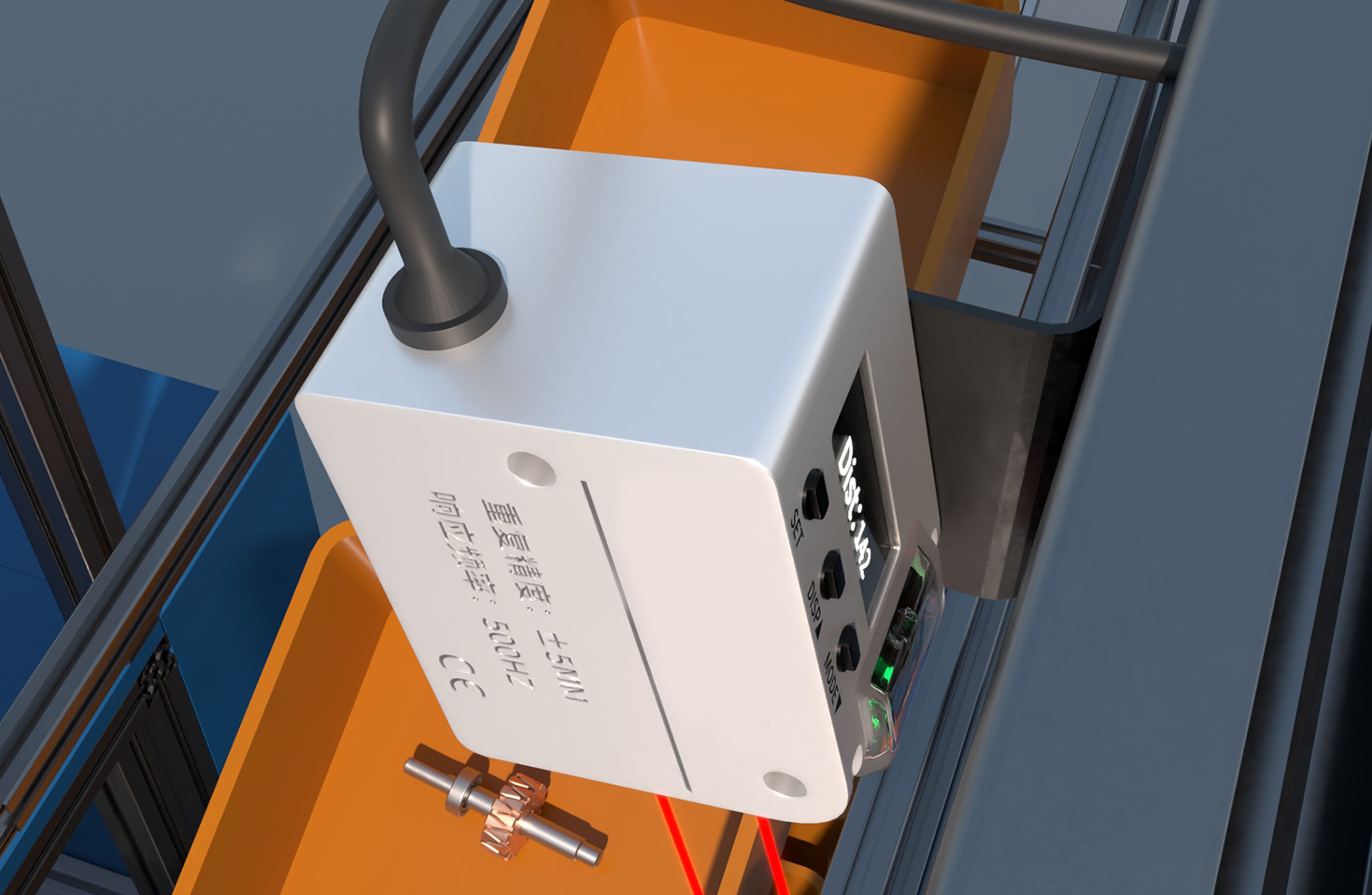
Internal hardware failure is a more serious cause. The laser diode, which emits the light, can degrade. The photodetector that receives the reflected light may become less sensitive. The small motor that spins the LiDAR module can wear out or fail. These components have a finite lifespan, and their failure typically requires professional repair or part replacement. Physical damage from a significant drop or impact can also misalign or break the delicate internal components.
Finally, software glitches, though less common, can mimic hardware failure. A bug in the robot's firmware or a corrupted map data file can cause the system to misinterpret perfectly good sensor data, leading to navigation errors.
Diagnosing and addressing these issues follows a logical sequence. Always start with the simplest solution: power off the robot completely, wait for 30 seconds, and restart it. This can clear temporary software errors.
Next, perform a thorough visual and physical inspection. Carefully clean the sensor dome using a soft, dry microfiber cloth. Avoid chemicals or abrasive materials that could scratch the plastic. Gently rotate the LiDAR turret (if accessible) by hand to check for any binding or obstruction. Use a can of compressed air to blow out any dust from the seams and the opening around the turret. Ensure the robot's charging contacts and sensors are also clean, as connectivity issues can sometimes cause broader system errors.
Check the robot's environment. Try running it during a different time of day when sunlight is less intense, or close blinds in problematic areas. Observe if specific reflective surfaces are causing issues and consider if temporary adjustments are possible.
Consult the official app and manufacturer's support. Check for any available firmware updates, as these often contain bug fixes. The app may have a diagnostic mode or error log that provides more specific information. Re-initializing or deleting the existing saved map and allowing the robot to create a new one can resolve software-related mapping corruption.
If basic cleaning and troubleshooting fail, the problem likely lies with internal hardware. For users comfortable with electronics, finding a replacement LiDAR module online for your specific model is possible. Numerous video tutorials detail the replacement process, which typically involves opening the chassis, disconnecting a few cables, and swapping the module. However, this voids any existing warranty and carries risk.
For most consumers, contacting the manufacturer's support or a certified repair service is the safest course of action for suspected internal failures. They can provide a definitive diagnosis and use genuine parts for repair.
Preventive maintenance is key to longevity. Regularly wipe the sensor dome with a dry cloth as part of your emptying routine. Keep the robot's operating area free of loose cables and small objects that could be sucked into the chassis. Store the vacuum in a clean, dry place. By understanding the vital role of the laser distance sensor and taking steps to protect it, you can ensure your robotic helper continues to navigate your home smoothly for years to come.