A mouse laser sensor malfunction can be a frustrating experience, disrupting your workflow, gaming sessions, or everyday computing. Unlike traditional optical sensors, laser sensors use laser diodes to track movement, offering higher sensitivity and the ability to work on more surfaces. However, this advanced technology is not immune to problems. Understanding the root causes and potential fixes can save you time and money, whether you're dealing with a high-end gaming mouse or a standard office peripheral.
One of the most common signs of a failing laser sensor is erratic cursor movement. You might notice the pointer jumping, stuttering, or moving independently without any input. Alternatively, the cursor may become completely unresponsive or freeze intermittently. In some cases, the sensor might stop tracking on surfaces it previously handled flawlessly, forcing you to constantly adjust the mouse or revert to using a mouse pad. These issues are often not related to software but point directly to hardware or environmental factors.

Several key factors can lead to laser sensor malfunction. The primary culprit is often physical damage or obstruction. Dust, hair, and debris can accumulate in the sensor's lens cavity, blocking the laser beam and disrupting its ability to read surface textures. A simple but careful cleaning with compressed air and a cotton swab can often resolve this. However, the sensor itself is a delicate component. Impact from dropping the mouse or excessive force can misalign or damage the laser diode, leading to permanent failure.
Surface compatibility, ironically, can also be an issue. While laser mice are renowned for working on glass or glossy surfaces, certain patterns, colors, or reflections can interfere with the sensor's tracking algorithm, causing jittery movement. Always test your mouse on a different, preferably plain and matte, surface to rule this out. Another frequent but overlooked cause is firmware corruption. The internal firmware that governs the sensor's operation can become corrupted due to a failed update or a power surge during use, requiring a reflash from the manufacturer's software.
Electrical issues within the mouse itself are a more complex cause. Over time, the solder joints connecting the sensor to the main printed circuit board (PCB) can weaken or crack, especially in mice subjected to constant movement and clicking. This creates an intermittent connection, manifesting as sporadic tracking loss. Similarly, a frayed or damaged USB cable can cause power delivery issues that directly affect sensor performance. For wireless mice, weak or old batteries, or interference from other wireless devices, can lead to sensor instability.
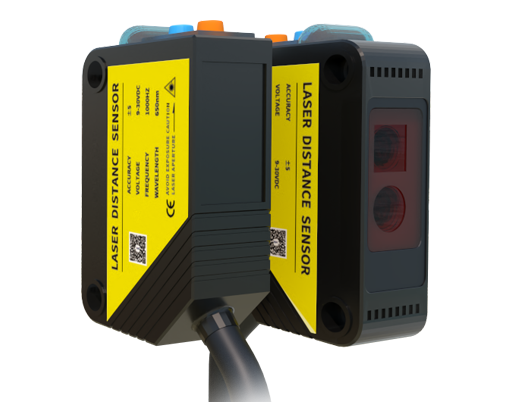
Before considering a replacement, there are several troubleshooting steps you can take. First, perform a basic cleaning. Power off the mouse, turn it upside down, and use a can of compressed air to blow out any debris from the sensor opening. Gently wipe the lens with a dry, lint-free cloth. Next, test the mouse on multiple surfaces, including a standard mouse pad. Try connecting the mouse to a different USB port on your computer, or if it's wireless, replace the batteries and ensure the receiver is unobstructed.
Software checks are equally important. Navigate to your computer's device manager, locate the mouse, and uninstall its driver. Restart your computer to allow the system to reinstall a generic driver. For branded mice, visit the manufacturer's website to download and install the latest official driver and firmware update utility. These updates often contain fixes for known sensor bugs. If you have mouse configuration software installed, check for any unusual settings like an excessively high DPI or polling rate that might be overwhelming the sensor, and reset to default settings.
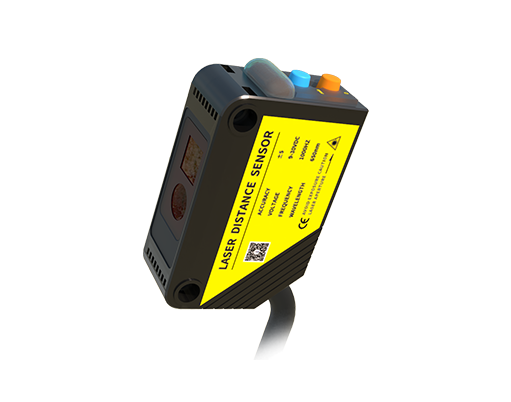
If hardware failure is suspected, the options become more limited. For mice under warranty, contact the manufacturer for a repair or replacement. For out-of-warranty devices, DIY repair is possible but requires technical skill. Re-soldering a loose connection or replacing the entire sensor module involves disassembling the mouse and requires precision soldering tools. Numerous online communities and video tutorials offer guides for specific mouse models. However, for most users, if cleaning, surface changes, and software resets do not solve the problem, and the mouse is old or was inexpensive, purchasing a new mouse is often the most practical and cost-effective solution.
Preventive maintenance can extend the life of your mouse's laser sensor. Regularly clean your mouse and the surface you use it on. Use a mouse pad designed for precision tracking; it provides a consistent texture and protects the sensor lens from scratches. Avoid yanking the cable or subjecting the mouse to physical shocks. When installing updates, ensure the mouse remains connected and the computer has stable power until the process is fully complete. By understanding the causes and solutions for laser sensor malfunction, you can effectively diagnose issues and maintain smooth, precise cursor control for years to come.