Understanding Through-Beam Photoelectric Sensors
Through-beam photoelectric sensors, also known as opposed-mode sensors, consist of two separate units: an emitter and a receiver. The emitter projects a focused beam of light—typically infrared or visible LED—directly toward the receiver. When an object interrupts this beam, the receiver detects the absence of light and triggers a signal change. This design offers several advantages, including long sensing distances (often up to tens of meters), high precision, and reliability in challenging environments with dust, dirt, or vibration. These sensors are widely used in industrial automation for tasks like object detection on conveyor belts, counting items, and safety curtains. Their binary output (ON/OFF) makes them inherently compatible with digital control systems, forming a perfect foundation for integration into smart home platforms when paired with appropriate interfaces.
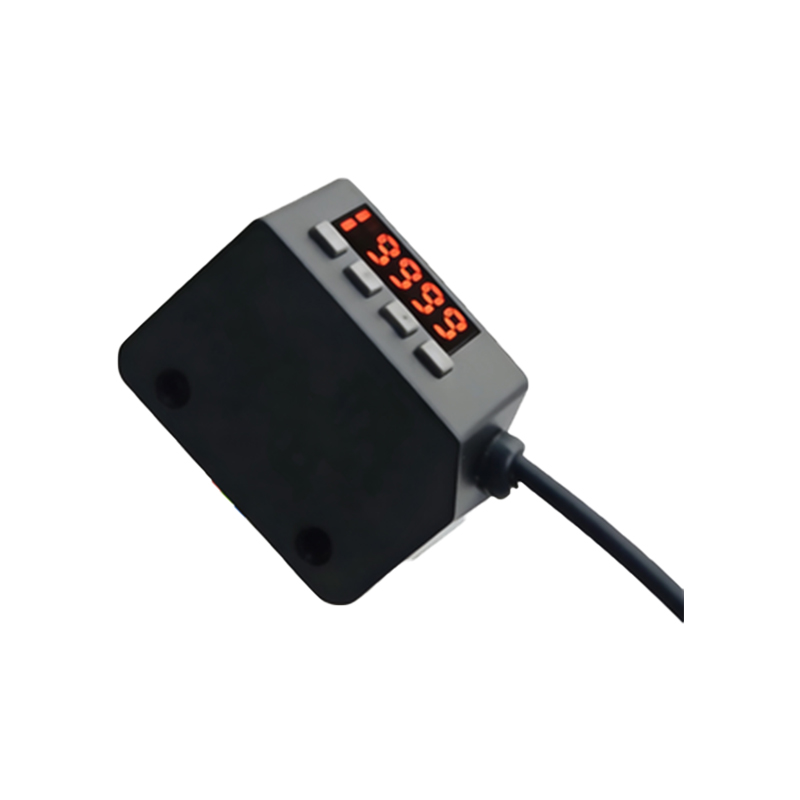
Components Needed for Mi Home Integration
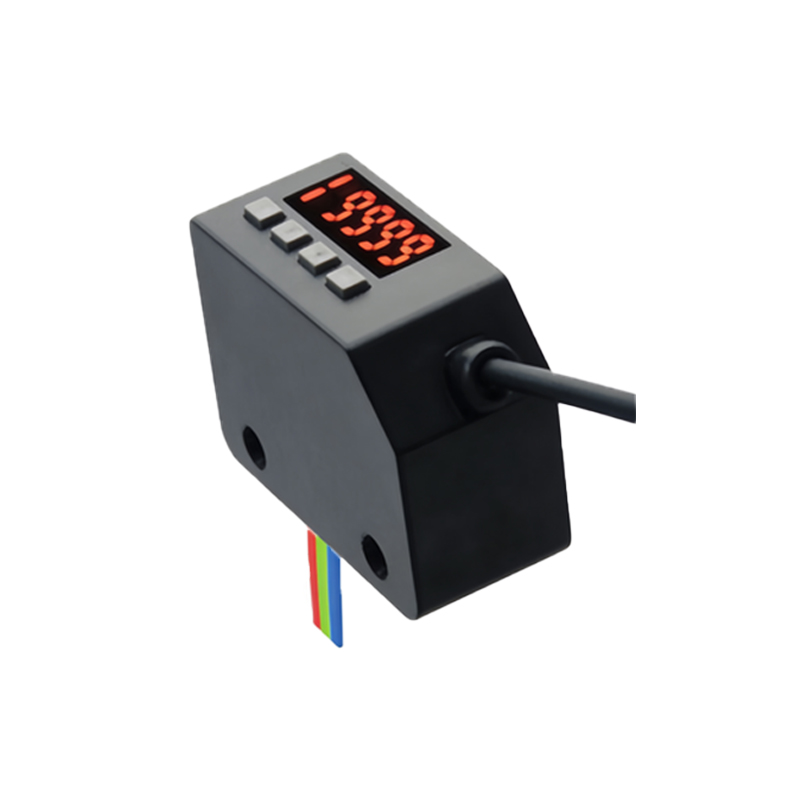
To connect a standard industrial through-beam sensor to the Mi Home ecosystem, you will require specific components to bridge the gap between the sensor's output and the smart home network. First, ensure your through-beam sensor operates on a DC voltage, commonly 12V or 24V, and provides a digital output signal (NPN or PNP transistor output). The critical component is a Mi Home-compatible smart relay or input module, such as the Aqara Relay or similar devices that feature a dry contact input. Additionally, you will need a suitable DC power supply matching your sensor's voltage, wiring tools, and possibly a resistor if interfacing different voltage levels. The Mi Home app, installed on your smartphone, serves as the central configuration platform. Always verify the compatibility of the smart relay with your local Mi Home server and frequency standards.
Wiring and Electrical Interface Setup
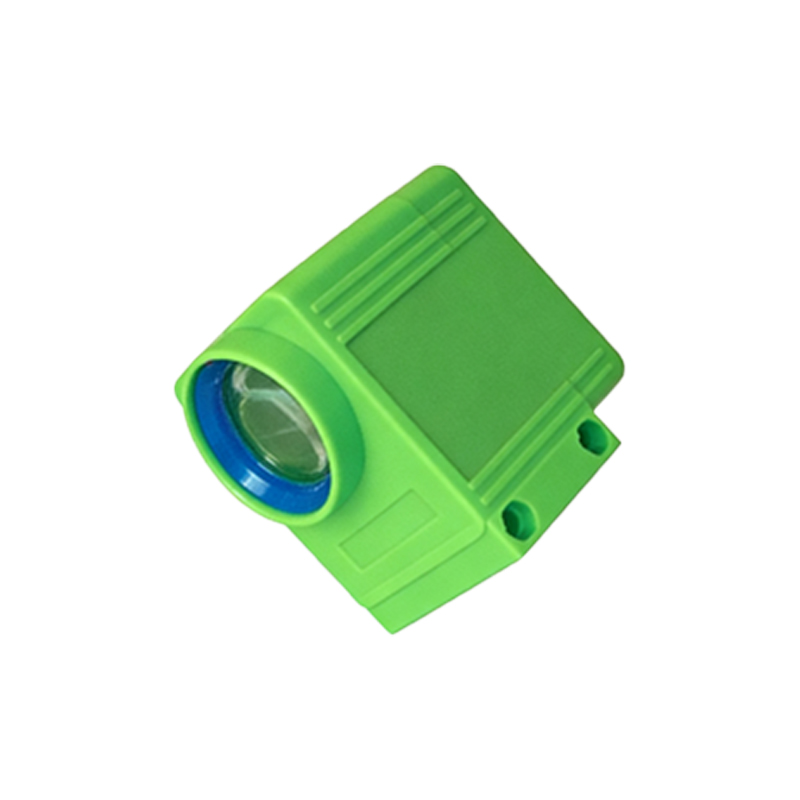
Begin by powering down all components. Connect the DC power supply's positive terminal to the sensor's positive input wire and the negative terminal to the sensor's negative wire. The sensor's output wire (often a black or blue wire) must be connected to one terminal of the smart relay's dry contact input. The other terminal of the dry contact input connects to the common or ground of the sensor's power supply, completing the circuit. For example, with an NPN output sensor (sinking), the output wire connects to the relay input, and the relay's common connects to the positive supply. This configuration allows the sensor, when triggered, to close the circuit on the relay's input, mimicking a switch press. Double-check all connections against the manufacturer's datasheets to prevent damage. Secure wires properly and consider using a small enclosure for safety.
Configuring the Device in Mi Home App
Power on the smart relay and sensor. Open the Mi Home app and tap the '+' icon to add a new device. Ensure your phone is connected to the correct Wi-Fi network. The app should automatically detect the nearby smart relay; if not, manually select the model from the list. Follow the in-app prompts to complete the pairing process, which typically involves holding a button on the device. Once added, the relay will appear in your device list. Navigate to the relay's settings to configure the input mode. Set it to respond to the dry contact as a trigger—often labeled as "switch" or "sensor" mode. You can rename the device to something descriptive, like "Conveyor Beam Sensor," for easier management within your smart home routines.
Creating Automations and Practical Applications
With the sensor now connected as a virtual switch in Mi Home, you can build powerful automations. Tap "Automation" in the app and create a new scene. As the condition, select the smart relay's triggered state (e.g., "When switch is turned on"). For the action, you can control any Mi Home-compatible device: turn on smart lights when an object is detected, send a notification to your phone, activate a camera to record, or even log the event in a spreadsheet via IFTTT integration. For industrial-style home workshops, use it to count items passing a point, trigger an alarm if unauthorized entry is detected in a restricted area, or automatically turn on ventilation when a machine starts operating. The latency is typically under one second, suitable for many non-critical monitoring tasks.
Troubleshooting Common Issues
If the sensor fails to trigger the automation, first verify the physical beam alignment; use an indicator or voltmeter to confirm the output changes state when interrupted. Check the smart relay's input LED for activity. Ensure the relay is online in the Mi Home app and that the automation is correctly enabled. Power supply issues are common—measure voltages at the sensor and relay. For intermittent operation, consider electrical noise; use shielded cables and keep sensor wires away from AC power lines. If the app does not recognize the trigger, re-check the input configuration in the relay settings. Remember that most industrial sensors are not designed for outdoor use without proper enclosures, as moisture can affect performance and safety.
Safety and Best Practices
Always prioritize safety when working with electrical components. Disconnect power before making wiring changes. Use insulated tools and enclosures rated for your environment. Ensure the through-beam sensor is installed securely, with the emitter and receiver firmly mounted to prevent misalignment from vibration. Regularly clean the lenses to maintain sensitivity. For critical safety applications, such as guarding machinery, do not rely solely on this Mi Home integration; use certified safety relays and circuits as the primary protection. This smart integration is ideal for monitoring, notification, and non-safety automation. Keep firmware for your Mi Home devices updated to benefit from security patches and new features. Document your setup for future maintenance or expansion.