In the realm of modern computing, particularly within premium business and consumer laptops like those from Dell, proximity sensors have become an integral yet often overlooked component. These sensors, typically based on infrared (IR) or capacitive technology, play a crucial role in enhancing user experience, power efficiency, and device longevity. For IT professionals, hardware engineers, and technically-inclined users, a deep understanding of their operation, integration, and common failure modes is essential.
A proximity sensor in a Dell laptop is primarily designed to detect the presence of a nearby object without any physical contact. The most common application is found in convertible or 2-in-1 models, such as the Dell XPS or Latitude series. When you close the laptop lid, the sensor detects the proximity of the display to the base (keyboard deck) and signals the system to enter sleep or hibernation mode. Conversely, opening the lid triggers the system to wake. This functionality is key to the modern "Instant-On" experience. Beyond lid detection, some implementations may use similar sensor technology for features like turning off the display during video calls when the user looks away, though this is more common in webcam firmware.
From an engineering perspective, these sensors are typically small, surface-mount devices located near the hinge assembly or integrated within the bezel of the display. They consist of an IR LED emitter and a photodiode receiver. The emitter sends out an infrared light beam. When an object (like the laptop palm rest) comes close, the light reflects back to the receiver. The sensor's controller IC measures the intensity of the reflected light to determine distance. This data is relayed to the Embedded Controller (EC) or Super I/O chip on the motherboard via an I2C or similar low-speed serial bus. The EC then communicates with the operating system through ACPI (Advanced Configuration and Power Interface) methods, triggering predefined power states.
Troubleshooting a malfunctioning proximity sensor requires a systematic approach. Common symptoms include: the laptop not sleeping when the lid is closed, not waking upon opening, or erratic power state transitions. Before delving into hardware, software must be ruled out. First, ensure the operating system power settings are configured correctly and that all Dell-specific drivers, especially for the ACPI subsystem and chipset, are up-to-date. BIOS/UEFI settings should be checked for any relevant options regarding lid switch or sensor behavior; a BIOS reset to defaults can sometimes resolve conflicts.
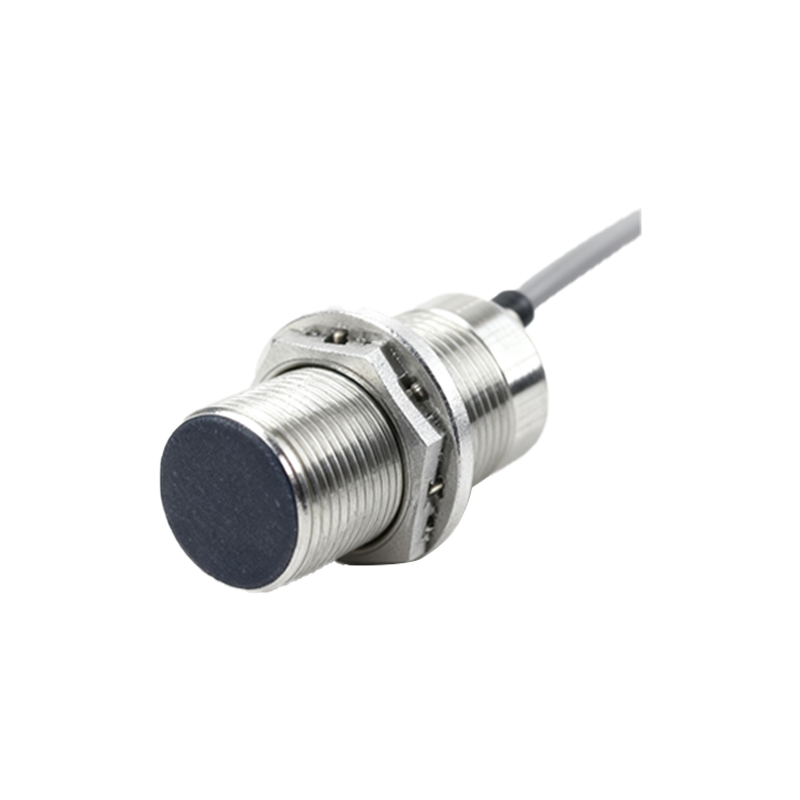
If software is eliminated as the cause, hardware diagnostics begin. The Dell built-in diagnostics (accessed by pressing F12 during boot) often include tests for system board components, though specific proximity sensor tests are not always present. Physical inspection is crucial. For lid-sensing, check if the sensor window on the display bezel or the corresponding reflective area on the base is obstructed by dirt, tape, or damage. The flexible cable connecting the sensor in the display assembly to the motherboard (often running through the hinge) is a common point of failure due to repeated flexing. Using a multimeter, a technician can check for continuity in this cable and for proper voltage (usually 3.3V) at the sensor connector on the motherboard.
In cases where the sensor module itself is faulty, replacement is necessary. This usually involves disassembling the display bezel, which requires care to avoid damaging the LCD panel. It is critical to source the exact part number for the specific Dell model, as sensors are not universally interchangeable. After replacement, calibration might be required, though most modern systems handle this automatically upon boot.
For advanced users and engineers, understanding the ACPI tables can be insightful. Tools like Windows Device Manager can reveal the sensor under "Sensors" or "System devices." Its ACPI methods (like _PSR, _LID) can be examined using a utility like ACPIView, providing low-level insight into how the OS interacts with the hardware.
In summary, the proximity sensor is a small but vital component in the Dell laptop ecosystem, bridging user interaction with core power management. Its failure, while not catastrophic, can significantly degrade the seamless experience these devices are designed to provide. A methodical troubleshooting process—from OS settings and drivers to physical inspection and circuit-level verification—is key to efficient repair. As laptops evolve with thinner bezels and new form factors, the role and technology of these sensors will continue to advance, making this knowledge a lasting asset for anyone involved in laptop maintenance and support.