In the realm of modern smartphones and tablets, the proximity sensor is a small but crucial component. It typically works by emitting an infrared light beam and measuring its reflection to detect the presence of nearby objects. The primary function is to blank the touchscreen during phone calls when the device is held close to the ear, preventing accidental screen presses. However, there are numerous scenarios where users might seek to unbind, disable, or troubleshoot this feature. This guide delves into the reasons, methods, and implications of proximity sensor unbinding.
Understanding the Need for Unbinding
The desire to unbind or disable the proximity sensor stems from various practical issues. A common problem is a malfunctioning sensor. Hardware failure, accumulation of dust or debris under the screen protector, or software glitches can cause the sensor to behave erratically. Symptoms include the screen turning off prematurely during calls, failing to wake up when moved away from the ear, or intermittent blackouts during normal use. For users who frequently use speakerphone or wired headphones, the automatic screen blanking can be an unnecessary nuisance. Furthermore, in certain repair scenarios, such as after a screen replacement, recalibrating or temporarily disabling the sensor might be necessary. The term "unbinding" here refers to the process of decoupling the sensor's control over the screen and other functions, effectively telling the operating system to ignore its input.
Methods for Disabling the Proximity Sensor
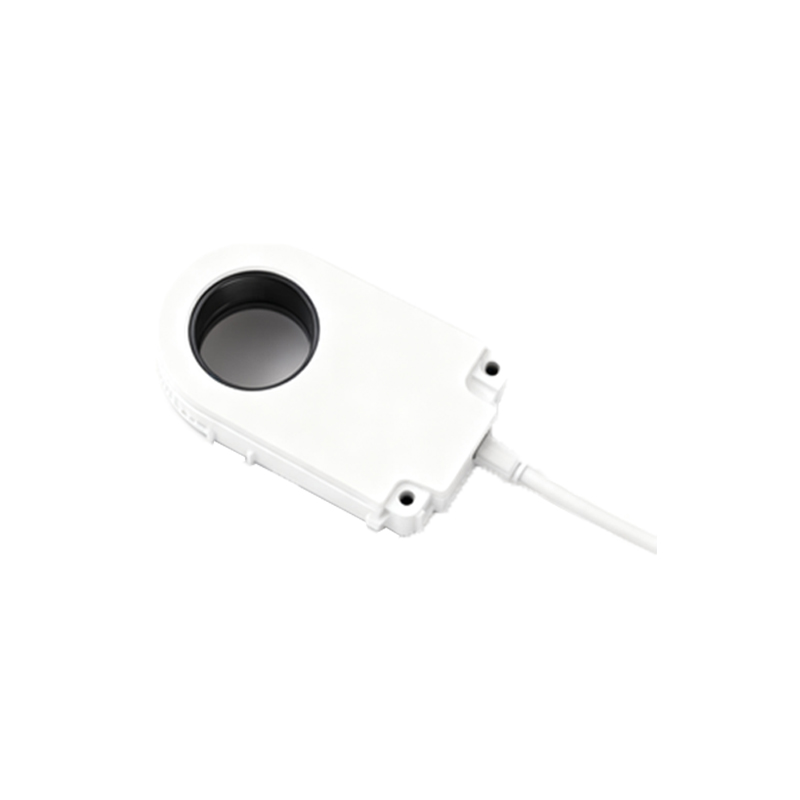
It is important to note that there is no universal, manufacturer-approved "disable" switch in device settings for the proximity sensor. The approaches vary significantly based on your device's operating system, model, and your willingness to modify the software.
For Android Devices:
1. Diagnostic Codes: Some manufacturers embed hidden diagnostic menus accessible via dialer codes (e.g.,##6484## or#0#). These menus often contain a "Proximity Sensor Test" where you can sometimes trigger a calibration or view sensor data. This does not usually disable it permanently.
2. Third-Party Applications: The Google Play Store hosts several apps like "Proximity Sensor Reset/Repair" or "Sensor Box." Their effectiveness is mixed. Some claim to recalibrate the sensor, while others may attempt to override its function by keeping the screen awake. Success depends heavily on your device's Android version and manufacturer skin (like One UI or MIUI), as deeper system integration often requires root access.
3. Root Access and System Modifications: This is the most effective but also the most risky method. With a rooted device, users can install modules (via frameworks like Magisk) or edit system files to disable the sensor driver. Apps like "Kernel Adiutor" or specific Magisk modules can sometimes offer toggle switches for sensors. Warning: Rooting voids warranty, can brick your device if done incorrectly, and poses security risks.
For iOS Devices:
Apple tightly integrates hardware and software, offering no official or simple unofficial way to disable the proximity sensor. The focus is on repair and calibration.
1. Software Troubleshooting: Standard steps include force-restarting the iPhone, updating to the latest iOS version, or performing a factory reset (after backing up data). These can resolve software conflicts affecting the sensor.
2. Hardware Inspection and Repair: Persistent issues almost always point to a hardware problem. Common causes are a misaligned or faulty sensor after a screen repair, a damaged sensor flex cable, or protective film blocking the sensor area. The official solution is to visit an Apple Store or Authorized Service Provider for diagnosis. iOS does not support the kind of system-level "unbinding" possible on some rooted Android devices.
A Universal Hardware "Fix":
A non-software, albeit crude, method reported by some users involves carefully placing a small, opaque piece of tape over the proximity sensor pinhole (usually located near the earpiece). This blocks the infrared light, tricking the device into thinking an object is always near. This can prevent screen blanking but also disables the feature entirely, which may cause the screen to stay on during calls against your ear, draining battery and potentially causing accidental touches. This is not recommended as a permanent solution.
Troubleshooting Before Unbinding
Before attempting to disable the sensor, run through these basic troubleshooting steps:
1. Remove any screen protector, case, or film that might be obscuring the sensor region.
2. Gently clean the area around the earpiece with a soft, dry cloth.
3. Test the sensor functionality using a dedicated app like "Sensor Test" to see if it registers changes when you cover and uncover it.
4. Boot the device in Safe Mode (Android) to check