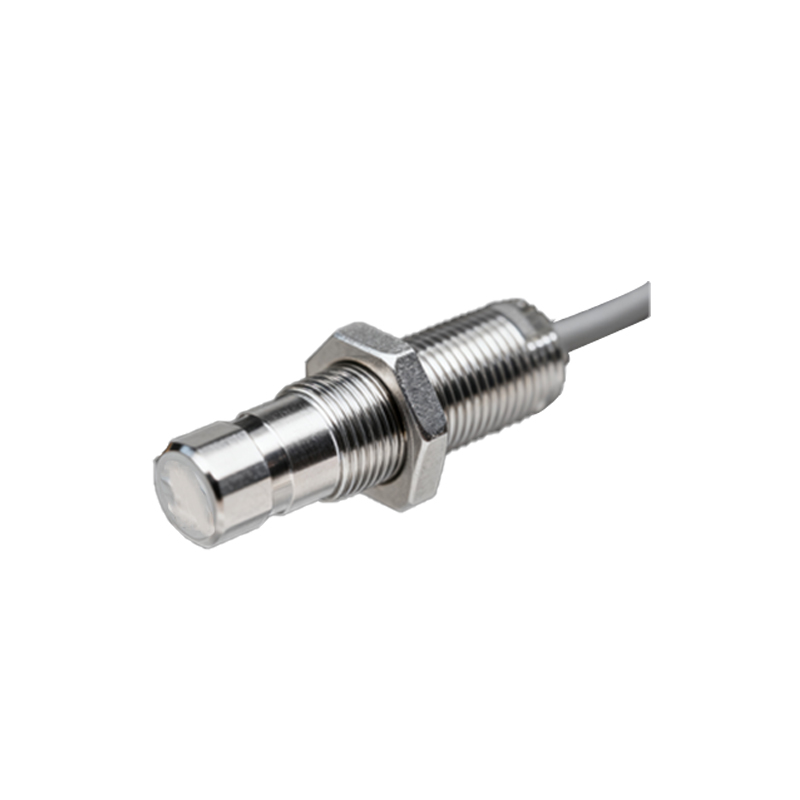
In the realm of modern smartphone engineering, the proximity sensor stands as a pivotal component, integral to user experience and device functionality. This sensor, typically an infrared (IR) or capacitive-based module, detects the presence of nearby objects without physical contact, primarily to deactivate the touchscreen during calls to prevent accidental inputs. For electrical engineers and tech-savvy users, understanding how to enable or troubleshoot this sensor is essential, as it involves both hardware integration and software configuration.
First, it's crucial to recognize that the proximity sensor is generally always active by default in smartphones, managed by the operating system (OS) and firmware. However, users may need to manually enable it in specific scenarios, such as after a system update, when using third-party apps, or if the sensor has been disabled due to software glitches. To access the sensor settings on most Android devices, navigate to the "Settings" menu, then select "Display" or "Accessibility" options. Look for terms like "Proximity sensor," "Prevent pocket dials," or "Turn off screen during calls." Toggle the switch to "On" to ensure the sensor is operational. On iOS devices, the proximity sensor is automatically controlled by the system, but users can check its status by going to "Settings" > "Accessibility" > "Touch" and ensuring "Tap to Wake" or similar features don't interfere with sensor behavior.
From an engineering perspective, enabling the proximity sensor involves verifying both hardware and software layers. Hardware-wise, the sensor is usually located near the earpiece or front camera, and any physical obstruction—like a screen protector or dirt—can impair its function. Cleaning the area or recalibrating the sensor through diagnostic tools (e.g., entering device-specific codes like #0on some Samsung models) can resolve issues. Software-wise, developers might need to adjust sensor parameters via Android's SensorManager API or iOS's Core Motion framework to optimize detection ranges, typically set between 1-5 centimeters for most smartphones.
In cases where the sensor fails to activate, advanced troubleshooting includes checking for firmware updates, which often contain driver improvements for sensor components. Rebooting the device or performing a factory reset can also reinitialize sensor settings, though this should be a last resort due to data loss risks. For custom ROM users or those involved in mobile hardware repair, tools like "Sensor Box" or "Phone Tester" apps can test proximity sensor functionality directly, providing real-time data on IR reflection or capacitance changes.
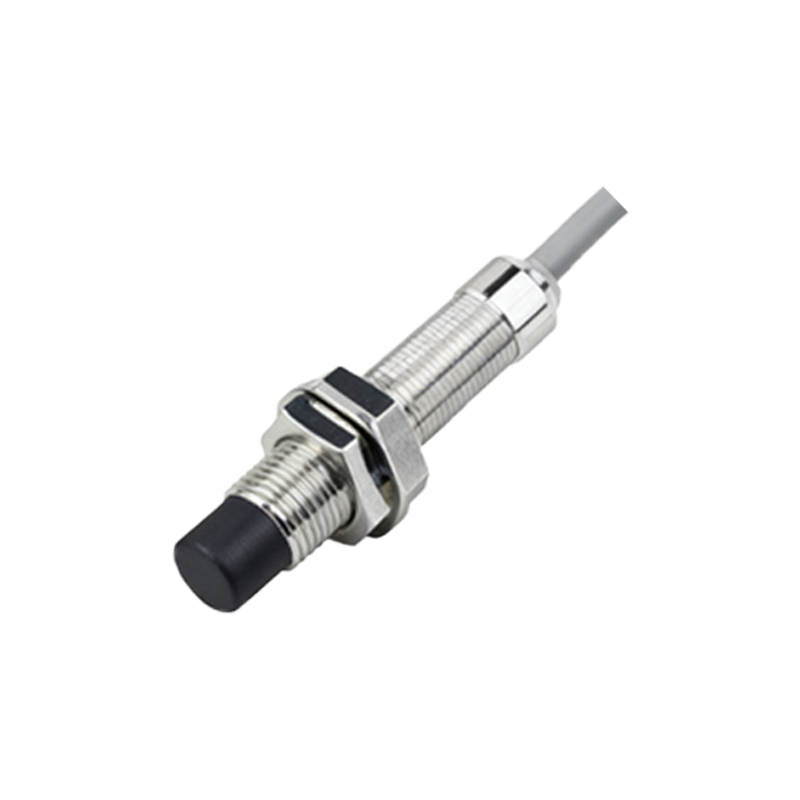
Ultimately, the proximity sensor's enablement is a seamless process for most users, but underlying it is a complex interplay of optoelectronics and embedded software. As smartphones evolve with foldable designs and under-display sensors, engineers continue to refine these systems for better accuracy and energy efficiency. By following these steps, you can ensure your device's proximity sensor is properly activated, enhancing call quality and battery life while minimizing unintended interactions.