In the world of computer peripherals, the evolution from mechanical ball mice to optical sensors, and finally to laser sensors, represents a significant leap in tracking technology. A laser mouse sensor operates by using an invisible laser diode to illuminate the surface beneath it. This laser light, with its coherent and focused beam, allows the sensor's CMOS (Complementary Metal-Oxide-Semiconductor) array to capture extremely detailed images of microscopic surface textures. Unlike traditional optical sensors that rely on LED light and may struggle on glossy or reflective surfaces, the precision and intensity of the laser enable tracking on a far wider variety of materials, including glass, polished wood, and even some fabrics.
The core advantage of a laser sensor lies in its high DPI (Dots Per Inch) and CPI (Counts Per Inch) capabilities. These terms, often used interchangeably in marketing, refer to the sensor's sensitivity—how many pixels the cursor moves on screen for every inch the mouse travels physically. Modern laser sensors can achieve staggering figures, often ranging from 8,000 to 20,000 DPI and beyond. For the average user, such extreme sensitivity is unnecessary and can be counterproductive. However, the true utility is not in using the maximum DPI at all times, but in having the headroom for customization. This allows users to set a lower, comfortable sensitivity for general desktop use or creative work, while having the capability to switch to a very high DPI setting for tasks requiring minute, pixel-perfect adjustments, such as photo editing or detailed CAD design.
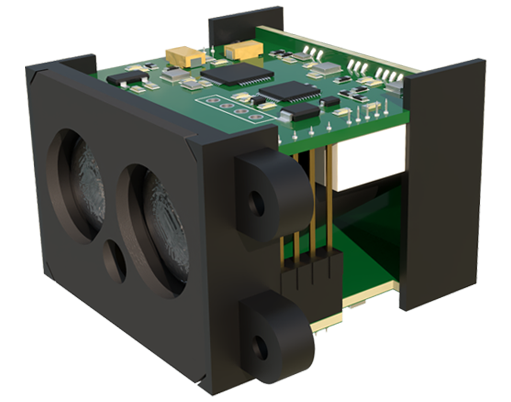
Gamers, particularly in the FPS (First-Person Shooter) and MOBA (Multiplayer Online Battle Arena) genres, have historically debated the merits of laser versus high-end optical sensors. Early laser sensors were sometimes criticized for exhibiting acceleration—a non-linear response where faster physical movement resulted in a disproportionately larger cursor movement. However, advancements in sensor technology and firmware have largely mitigated this issue in premium models. The key for gaming is not just raw DPI, but a combination of factors: a high maximum tracking speed (how fast you can swipe the mouse before it fails to track), a low lift-off distance (LOD—how high you can lift the mouse before it stops tracking), and minimal smoothing or prediction algorithms that can add input lag. A well-tuned laser sensor excels in providing consistent tracking on unconventional surfaces, which can be crucial for gamers using hard mouse pads with unique textures or for those who compete in varied environments.
For professionals in graphic design, video editing, and 3D modeling, the laser sensor's precision is a major asset. The ability to set a high resolution means that broad, sweeping arm movements across a large desk can translate to precise cursor control across multiple high-resolution monitors. This reduces physical strain and increases workflow efficiency. When working with intricate vector points or timeline markers, the subtle control offered by a high-DPI laser sensor, often coupled with dedicated DPI toggle buttons on the mouse itself, allows for rapid switching between macro-level navigation and micro-level detail work without constantly adjusting software zoom levels.
To truly harness the power of a laser sensor, proper configuration is essential. It begins with surface selection. While a laser mouse tracks on more surfaces, using a quality mouse pad designed for laser sensors will yield the most consistent and reliable results. These pads provide a uniform texture that the sensor can read optimally, reducing any potential jitter or z-axis tracking errors. Next, dive into the mouse's dedicated software driver. Here, you can fine-tune the DPI/CPI settings in stages. Instead of one extreme setting, create profiles for different activities: a profile for web browsing at 1200-1600 DPI, one for office work at 2000 DPI, and one for precision tasks at 4000 DPI or higher. Adjust the polling rate—the frequency at which the mouse reports its position to the computer. A higher polling rate (500Hz or 1000Hz) reduces latency but uses slightly more CPU resources.
Furthermore, calibrate the mouse for your specific surface within the software if the feature is available. This process teaches the sensor the exact characteristics of your mouse pad or desk surface, optimizing its tracking performance. Pay attention to the lift-off distance setting; a lower LOD is preferable for gamers who frequently reposition the mouse, while a slightly higher setting might prevent accidental cursor movement for others. Finally, keep the sensor lens clean. Dust and debris can obstruct the laser beam, causing erratic tracking. Use a soft, dry cloth or a can of compressed air for gentle cleaning.
In conclusion, the laser mouse sensor is a powerful tool whose potential is often underutilized. Its value is not merely in a high number on a box but in the flexibility, precision, and surface compatibility it offers. By moving beyond the default settings and taking the time to configure the sensor to match your specific hardware environment and task requirements, you can transform your interaction with the digital world. Whether you are lining up a perfect headshot, editing a critical film scene, or simply navigating a complex spreadsheet, a properly configured laser mouse becomes a seamless extension of your intent, bridging the gap between physical movement and digital action with remarkable fidelity.