A malfunctioning mouse laser sensor can be a frustrating experience, disrupting your workflow, gaming performance, or general computer navigation. Unlike the old ball-based mice, modern optical and laser mice rely on a tiny camera (the sensor) to track movement by taking thousands of pictures per second of the surface beneath them. When this sensor fails, the cursor may jump erratically, freeze, or stop responding entirely. Understanding the causes, diagnosis steps, and potential fixes can save you time and money before considering a replacement.
The first step is accurate diagnosis. Symptoms of a failing laser sensor are often distinct from other mouse issues. The most common signs include inconsistent cursor movement on a known-good surface, complete failure to track movement despite the LED light (if visible) being on, or the cursor moving only in straight horizontal or vertical lines. Before concluding the sensor is broken, perform basic troubleshooting. Try the mouse on a different, non-reflective surface like a plain mousepad or a sheet of matte paper. Glossy, transparent, or highly patterned surfaces can interfere with even a healthy sensor.
Next, test the mouse on another computer. This eliminates the possibility of a software driver issue or USB port problem on your primary machine. If the mouse behaves the same way on a different computer and surface, the hardware is likely at fault. Gently clean the sensor lens at the bottom of the mouse using a can of compressed air or a soft, lint-free cloth slightly dampened with isopropyl alcohol. Dust, hair, or grime can obscure the sensor's view, mimicking a hardware failure. Ensure no physical obstructions are blocking the lens.
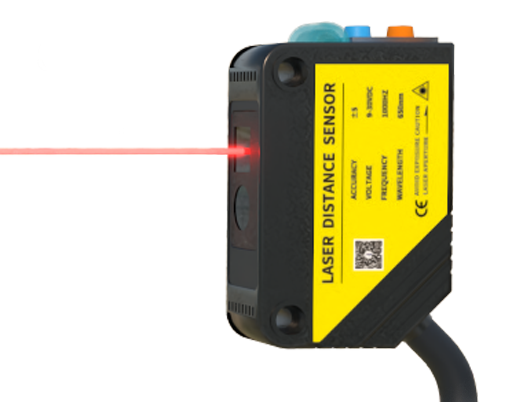
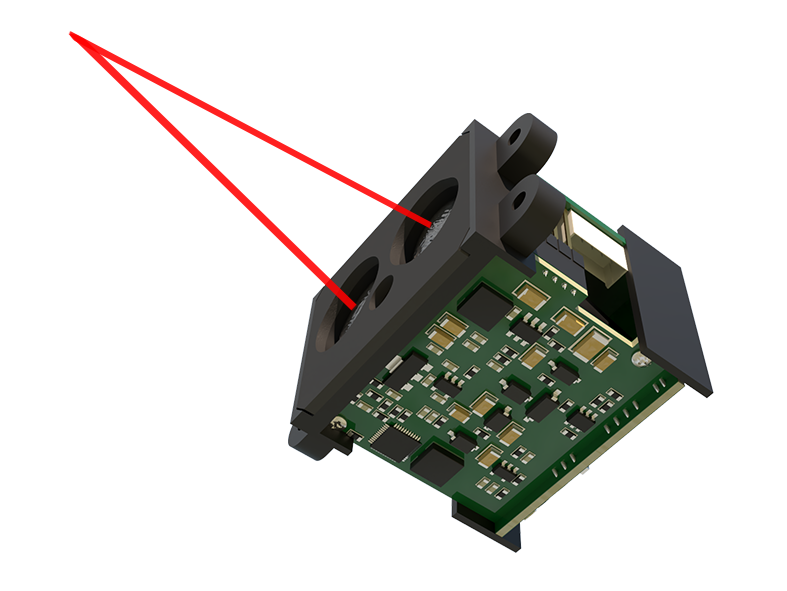
If cleaning doesn't resolve the issue, the problem may be internal. This could range from a loose internal connection, a damaged flex cable connecting the sensor to the main board, or the sensor component itself failing due to age, electrical surge, or physical impact. For users comfortable with electronics, opening the mouse to check for obvious disconnections or corrosion is an option. However, this often voids warranties and requires precision tools. Reseating any internal ribbon cables can sometimes restore function if the issue was a poor connection.
Software can occasionally be a culprit. Navigate to your computer's Device Manager, find the mouse under "Mice and other pointing devices," uninstall the device, and then restart your computer to allow the OS to reinstall the default driver. For gaming mice with dedicated software, try resetting the device to factory defaults or updating its firmware, as a corrupted profile or firmware bug can cause tracking issues.
When hardware failure is confirmed, the economic feasibility of repair comes into play. For most standard, inexpensive mice, soldering a new sensor is not cost-effective compared to buying a new unit. The sensor is a sophisticated micro-component that is challenging to source and replace without professional micro-soldering equipment. For a high-end gaming or professional mouse, contacting the manufacturer's support for a warranty claim or a paid repair service might be worthwhile.
Prevention is key to extending your mouse's lifespan. Use a quality mousepad designed for optical/laser tracking. This provides a consistent surface and protects the lens from scratches. Avoid yanking the cable or dropping the mouse. Regularly clean the sensor area to prevent buildup. Also, use a surge protector for wired mice or ensure wireless receivers are not placed near sources of strong electromagnetic interference.
In conclusion, a "broken" laser sensor often has solutions short of immediate disposal. Methodically rule out surface, connection, and software issues first. A simple cleaning is surprisingly effective in many cases. For internal hardware faults, the decision to repair or replace hinges on the mouse's value and your technical skill. Recognizing the symptoms early and maintaining your equipment properly can prevent many sensor-related problems and ensure smooth pointer control for years to come.