Proximity switch sensors are indispensable components in modern industrial automation, providing non-contact detection of metallic or non-metallic objects. Proper debugging is crucial to ensure reliable operation, minimize downtime, and optimize system performance. This guide outlines a systematic approach to debugging proximity switch sensors, tailored for engineers and technicians in the field.
1. Pre-Debugging Preparation and Safety
Before initiating any debugging procedure, ensure all safety protocols are followed. De-energize the related control circuit if possible, or work with extreme caution on live systems as per lockout-tagout (LOTO) procedures. Gather necessary tools: a multimeter, oscilloscope (for advanced signal analysis), the sensor's datasheet, and the system schematic. Verify the sensor type (inductive, capacitive, or ultrasonic) and its specifications, including operating voltage, output type (PNP/NPN, NO/NC), and sensing range.
2. Initial Power and Wiring Check
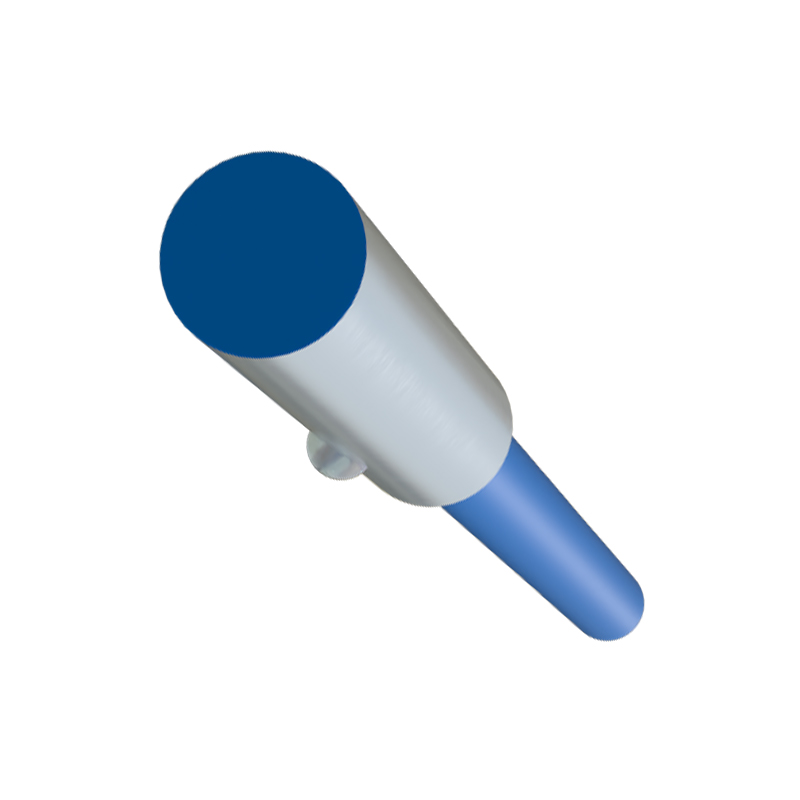
Begin with a visual inspection of the sensor, its mounting, and cabling. Look for physical damage, loose connections, or environmental contaminants like oil or metal chips that could affect performance. Confirm the wiring against the datasheet. For a standard 3-wire DC sensor:
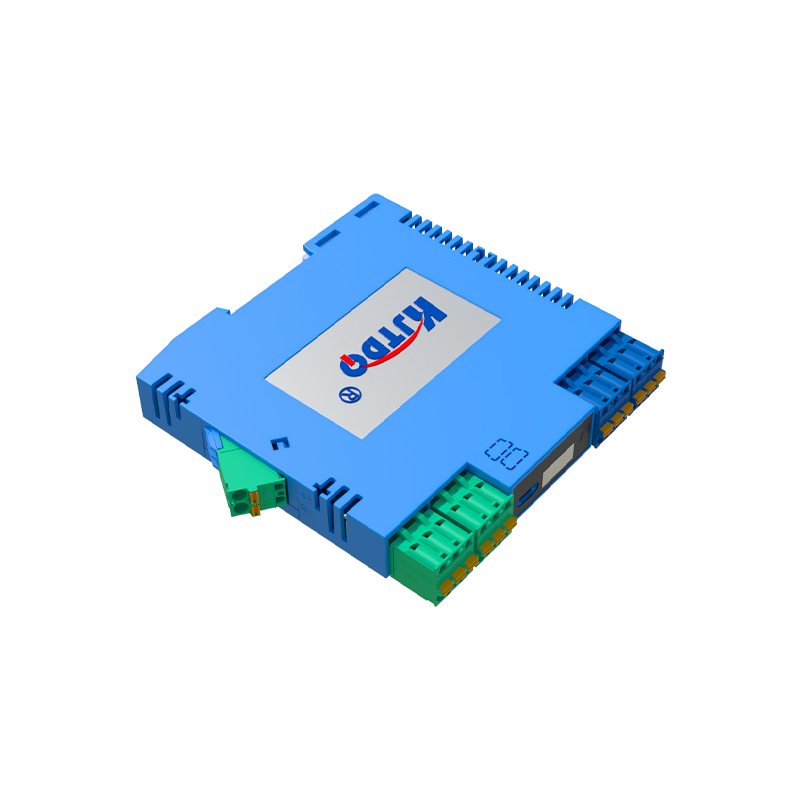
- Brown wire: Connect to DC positive (+V).
- Blue wire: Connect to DC negative (0V or common).
- Black wire: The output signal line.
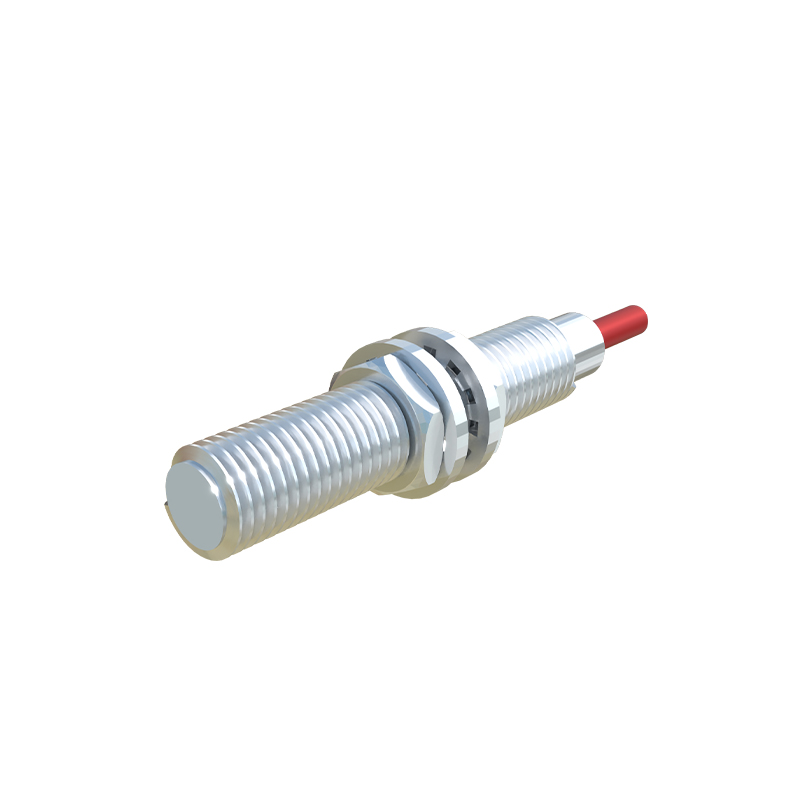
Ensure the power supply voltage is within the sensor's specified range (e.g., 10-30 VDC). Use a multimeter to check for correct voltage at the sensor's terminals. A common issue is incorrect polarity or voltage spikes, which can damage the sensor internally.
3. Verifying Sensor Operation and Output
With power applied and no target present, check the sensor's output state. For a normally open (NO) sensor, the output should be "off" (e.g., 0V for PNP, or floating/high for NPN). Bring a valid target material (typically the standard specified in the datasheet) within the rated sensing distance. The output should switch states. Use a multimeter to measure the voltage between the output wire and common. For a PNP sensor, you should see a change from near 0V to near the supply voltage when activated. For an NPN, the change is from near supply voltage to near 0V. Inconsistent or no switching indicates a problem.
4. Adjusting Sensing Distance and Sensitivity
Many proximity sensors feature a potentiometer for adjusting sensitivity or a built-in LED indicator. The LED typically lights when the target is detected. Slowly bring the target towards the sensor face. Note the distance at which the LED triggers—this is the actual sensing point. Compare this to the rated nominal sensing distance (Sn). If the actual distance is significantly less, it may indicate:
- Incorrect target material, size, or shape.
- The need for sensitivity adjustment. Carefully turn the potentiometer clockwise (usually to increase sensitivity) while monitoring the LED and output. Avoid setting sensitivity too high, as this can cause instability from background interference or temperature drift.
5. Diagnosing Common Issues
No Output Signal: Confirm power, wiring, and output type compatibility with the PLC or controller input. A PNP sensor outputs positive voltage and is typically used with a sinking PLC input, while an NPN is used with a sourcing input. Mismatch here is a frequent error.
Intermittent Operation: This often points to electrical noise, vibration, or a marginal sensing condition. Check for loose mounting, unstable power supply, or nearby sources of electromagnetic interference (e.g., motors, welders). Ensure shielded cables are properly grounded at the control panel end only.
Sensor Triggers Without Target: Excessive sensitivity, build-up of debris on the sensor face, or environmental factors (like conductive dust for capacitive sensors) can cause false triggering. Reduce sensitivity, clean the sensor face, or consider a sensor with a different technology better suited to the environment.
6. Advanced Debugging with an Oscilloscope
For persistent or complex issues, an oscilloscope is invaluable. Probe the output signal to observe its rise/fall time and stability. Noise on the output line will be visible. Also, monitor the power supply line for dips or transients that coincide with machine events (like a large motor starting), which can reset or disrupt sensor operation.
7. Final System Integration Test
After the sensor operates correctly in a standalone test, integrate it back into the full control sequence. Operate the machinery through its full cycle, testing the sensor's response at various speeds and with all intended target objects. Verify that the timing and logic in the PLC program align with the sensor's physical behavior. Document the final sensitivity setting and mounting position for future reference.
Conclusion
Method