When your proximity sensor stops sending signals, it can disrupt the functionality of your device, whether it's a smartphone that won't turn off the screen during calls or industrial machinery that fails to detect objects. This issue is a common point of frustration across consumer electronics and automated systems. Understanding the root causes and systematic troubleshooting steps is essential for restoring proper operation.
A proximity sensor is a non-contact device that detects the presence or absence of an object within a specific range. It typically works by emitting an electromagnetic field or a beam of radiation (like infrared light) and looking for changes in the field or return signal. When it fails to generate a signal, the system interprets this as "no detection," even when an object is present, or it may simply cease to function entirely.
The reasons for a proximity sensor having no signal can be broadly categorized into hardware failures, software/configuration issues, and environmental interference.
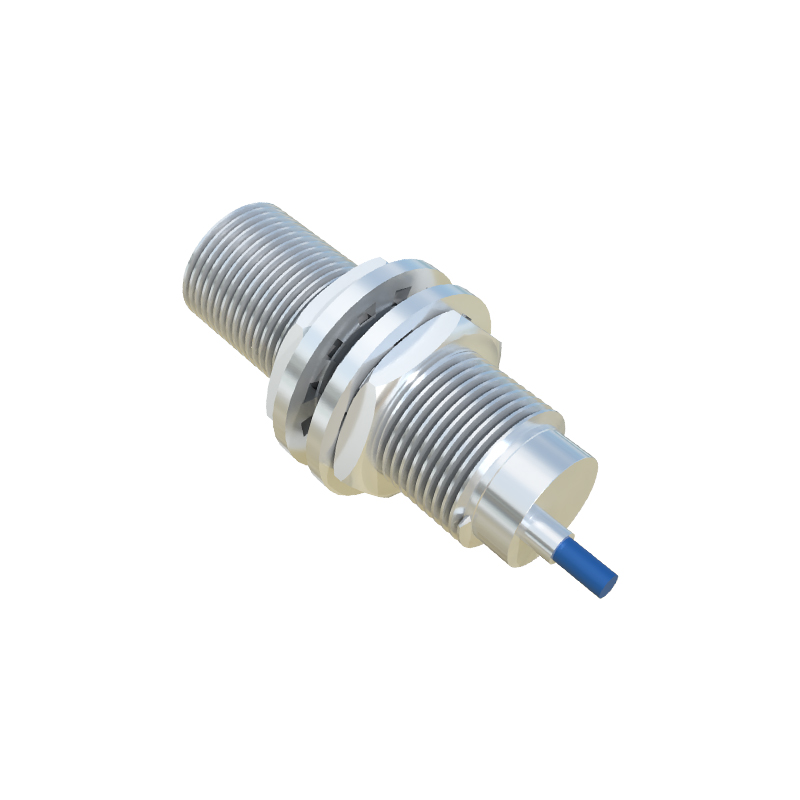
Hardware Failures:
This is often the primary suspect. Physical damage is a common culprit. For smartphones, a cracked screen or a poorly performed screen replacement can damage the delicate sensor module located near the earpiece. In industrial settings, sensors can be damaged by impact, vibration, or exposure to harsh chemicals. Internal component failure is another possibility. The sensor's LED (for optical types) or its receiver can burn out. Loose or corroded electrical connections, broken wires in the cable harness, or a faulty connector will interrupt the signal path completely. Finally, the issue might not be with the sensor itself but with the power supply. An incorrect voltage, a blown fuse, or a failing power adapter can leave the sensor without the energy needed to operate.
Software and Configuration Issues:
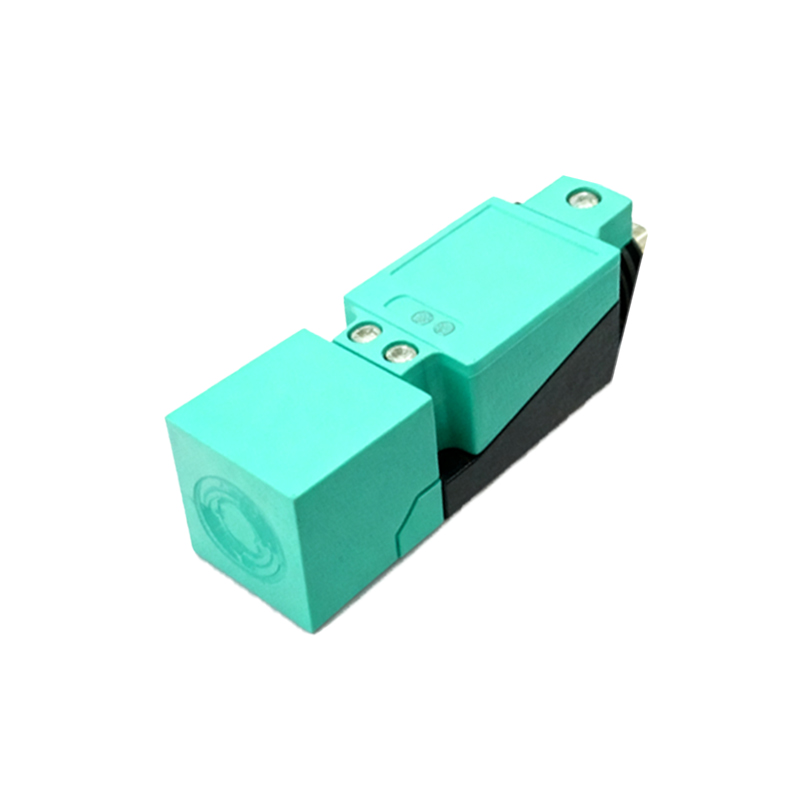
On smart devices, a corrupted operating system, a buggy firmware update, or a conflicting application can disable or interfere with the sensor driver. A simple software glitch might cause the sensor service to crash. In programmable logic controller (PLC) systems or configurable industrial sensors, incorrect parameter settings are a frequent cause. The sensing range might be set incorrectly, the output type (e.g., NPN vs. PNP) might be mismatched with the controller's input card, or the sensor could be in a teach/programming mode, disabling normal operation.
Environmental Interference:
Sensors are designed for specific conditions. Optical sensors (infrared) can be fooled by ambient light, especially direct sunlight, which floods the receiver and drowns out its own signal. Dust, dirt, oil, or paint buildup on the sensor's lens or face acts as a barrier, blocking the emitted beam. For inductive sensors (which detect metals), the presence of other metal objects in the background or side-by-side sensor installation without sufficient spacing can cause false readings or signal loss. Extreme temperatures outside the sensor's specified operating range can also lead to failure.
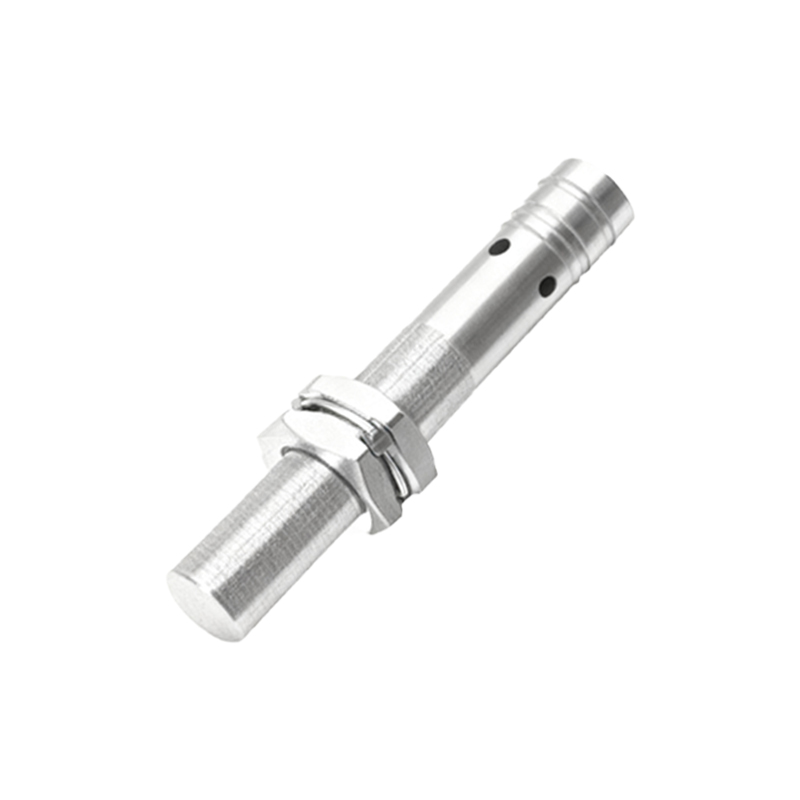
Systematic Troubleshooting Steps:
A logical approach is key to diagnosing the "no signal" problem.
1. Basic Checks: Start with the simplest solutions. For a phone, restart the device. This can clear temporary software glitches. Clean the sensor area meticulously with a soft, dry cloth. Ensure no screen protector or case is obstructing the sensor. In an industrial panel, check the indicator lights on the sensor. Most have a power LED and a signal/output LED. If the power LED is off, the issue is with the supply.
2. Inspect for Physical Damage: Visually examine the sensor, its cable, and connectors for any signs of crushing, cutting, corrosion, or bent pins. Gently wiggle connectors while monitoring the signal to check for intermittency.
3. Verify Power and Wiring: Use a multimeter to confirm the sensor is receiving the correct voltage at its terminals. Check the wiring against the datasheet diagram. A common mistake is incorrect wiring of the 3-wires: mixing up the positive, negative, and signal wires, or connecting an NPN sensor to a PNP-sinking input (or vice-versa).
4. Isolate the Problem: If possible, perform a swap test. Replace the suspect sensor with a known-good unit of the same model. If the new sensor works, the original is faulty. If the problem persists, the issue lies in the wiring, power supply, or controller input. You can also bypass the controller by connecting the sensor's output directly to a simple pilot light or multimeter to see if it activates when an object is present.
5. Check Configuration and Software: For industrial sensors, consult the manual and verify all settings (range, output mode, hysteresis). For phones, boot into Safe Mode (which disables third-party apps) to see if the sensor works. If it does, a recently installed app is likely the cause. A factory reset is a last resort, remembering to back up data