Understanding the Photoelectric Sensor in Brother Printers
The photoelectric sensor, often referred to as a paper or jam sensor, is a critical component in Brother printers. It detects the presence or absence of paper and toner cartridges, ensuring smooth operation. In models like the Brother HL-L2350DW or MFC-J995DW, a faulty sensor can lead to persistent paper jam errors or misdetection of toner. As an electrical engineer, I recommend understanding the sensor's location (usually near the paper tray or fuser unit) and its wiring before attempting replacement. This component typically uses an infrared LED and phototransistor pair, which can degrade over time due to dust or mechanical stress.
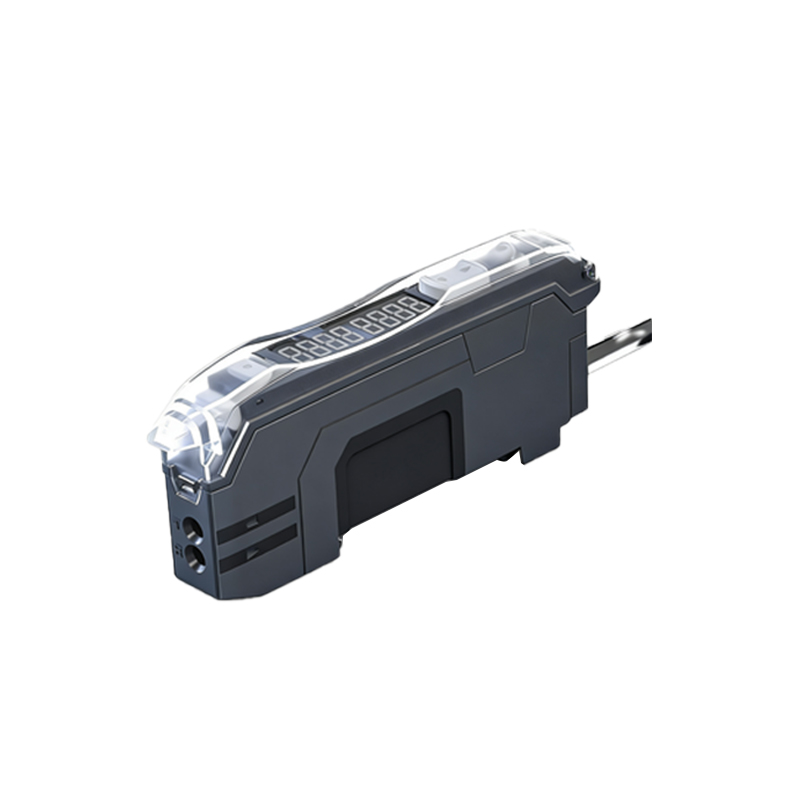
Symptoms of a Faulty Photoelectric Sensor
Common signs include intermittent "Paper Jam" errors when no jam exists, failure to detect paper in the tray, or the printer failing to start printing. Electrical diagnostics often reveal erratic voltage readings at the sensor's output pin. For instance, a healthy sensor should output a high signal (around 3.3V) when paper is absent and a low signal when paper is detected. If you measure a constant low or high voltage with a multimeter, the sensor is likely defective. In my experience, environmental factors like high humidity or toner dust contamination are frequent culprits.
Tools and Safety Precautions
Before starting, gather the following tools: a Phillips-head screwdriver (#1 or #2), a pair of tweezers for handling small connectors, a multimeter for verification, and a replacement sensor (Brother part number varies by model, e.g., LV1001001 for HL series). Ensure the printer is unplugged and discharged of residual voltage by pressing the power button for 5 seconds after disconnecting. Wear an anti-static wrist strap to avoid damaging sensitive electronics. Work on a clean, well-lit surface.
Step 1: Accessing the Sensor Assembly
Begin by removing the paper tray and any external covers. For most Brother models, you need to open the front panel and remove the toner cartridge and drum unit. Then, locate the sensor mounting bracket near the paper feed roller or fuser. Use the screwdriver to remove the securing screws (usually 2-4 plastic clips or screws). Carefully detach the sensor from the bracket, noting the orientation of the connector. If the sensor is part of a larger assembly, like in the MFC models, you may need to remove additional shields.
Step 2: Disconnecting and Removing the Old Sensor
Gently unplug the sensor's connector from the main control board. Use tweezers if the connector is small. Avoid pulling on the wires directly; instead, grip the connector body. Once disconnected, remove the old sensor. Inspect the surrounding area for toner dust or debris, and clean it with compressed air if necessary. Note the sensor's part number for warranty or future reference.
Step 3: Installing the New Sensor
Align the new photoelectric sensor with the mounting bracket, ensuring the LED and phototransistor are correctly oriented. Push the connector into the control board socket until it clicks. Secure the sensor with screws or clips, ensuring it is flush against the bracket. Reassemble the printer by reversing the removal steps: replace the drum unit, toner cartridge, front panel, and paper tray. Do not power on yet.
Step 4: Testing and Calibration
Plug in the printer and power it on. Run a self-test via the printer's menu (e.g., "Settings" > "Maintenance" > "Test Page"). Check for any error messages. Place a sheet of paper in the tray and print a test page. If the sensor is correctly installed, the printer should detect the paper without false jam errors. Use a multimeter to measure the sensor output during operation; it should toggle between high and low states. If issues persist, check for loose connections or damaged wiring.
Troubleshooting Common Issues
If the printer still shows errors after replacement, verify the sensor alignment. Misalignment can cause false readings. Also, check the control board's voltage output—if it is below 3.0V, the board may have a fault. In rare cases, the firmware may need resetting. Perform a "cold reset" by holding the "Go" button while powering on, then release after 10 seconds. Finally, always use genuine Brother sensors to ensure compatibility.