Understanding the Role of Photoelectric Sensors in Canon Equipment
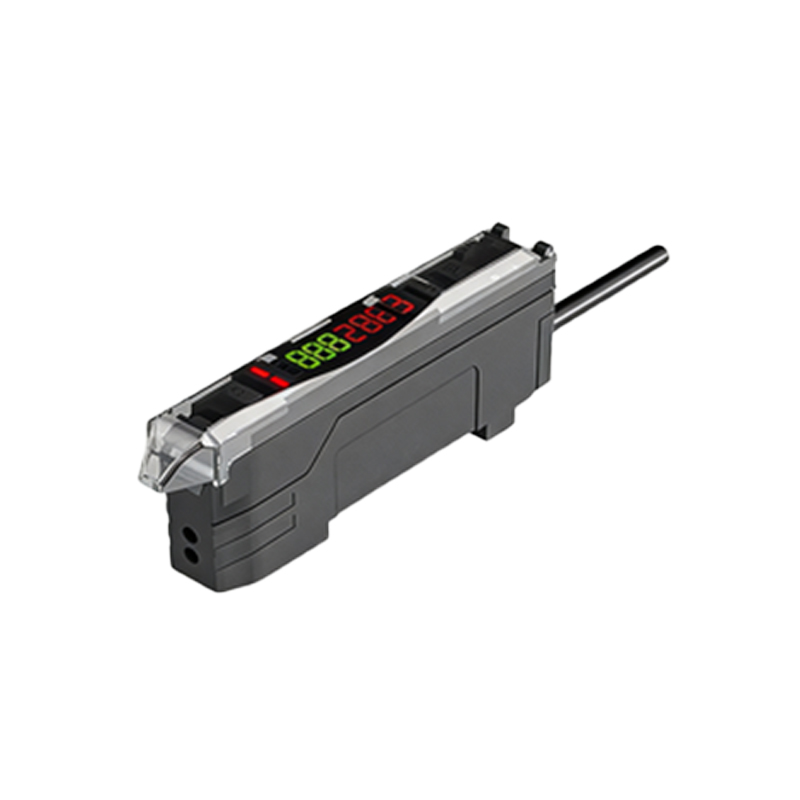
Photoelectric sensors are critical components in many Canon industrial and office devices, such as printers, copiers, and manufacturing equipment. These sensors detect the presence, absence, or position of objects by emitting light beams and measuring changes in reflection or interruption. When a sensor fails, it can cause paper jams, misalignment, or system shutdowns. As an electrical engineer, recognizing the symptoms of a faulty sensor—like erratic machine behavior or error codes—is the first step toward effective replacement. This guide focuses on a typical replacement scenario using a video-based walkthrough, ensuring precision and safety.
Pre-Replacement Safety and Preparation
Before starting any replacement, disconnect the equipment from its power source to avoid electric shock or damage to sensitive electronics. Wear anti-static wrist straps to prevent electrostatic discharge (ESD) that can ruin semiconductor components. Gather necessary tools: a small screwdriver set, tweezers, and the replacement sensor (check the Canon part number, e.g., SENSOR-PHOTOELECTRIC). Refer to the equipment's service manual for specific sensor location and wiring diagrams. A clean, well-lit workspace is essential. The video demonstration emphasizes these steps, highlighting how to identify the sensor's mounting bracket and connector type.
Step-by-Step Sensor Removal Process
Follow the video closely for visual cues. First, access the sensor compartment by removing panels or covers as shown. Use tweezers to gently disconnect the ribbon cable or wire harness from the sensor's terminal block. Note the wire color coding or pin orientation for reinstallation. Then, unscrew or unclip the sensor from its bracket. The video demonstrates applying gentle torque to avoid stripping threads. If the sensor is glued or adhered, use a plastic prying tool to avoid scratching surfaces. Inspect the bracket for dirt or damage; clean it with isopropyl alcohol if needed. The entire removal process takes less than 5 minutes in the video, but patience is key.
Precision Installation of the New Sensor
Align the new sensor with the bracket, ensuring the light emitter and detector face the correct direction. Tighten screws to the manufacturer's torque specification (typically 0.2-0.4 Nm). Reconnect the wiring harness, matching the colors or pin layout exactly. The video highlights a common mistake: reversing the power and signal wires, which can cause a short circuit. Once connected, double-check that the sensor's sensing area is unobstructed. The video shows using a small test target, like a white card, to verify the sensor's alignment by observing the LED indicator (usually a red or green light) that confirms activation.
Post-Replacement Testing and Calibration
Reconnect the power supply and turn on the equipment. Enter the diagnostic mode (often by pressing a specific key sequence) to test the sensor. The video demonstrates using a multimeter to measure output voltage; a working sensor should toggle between high (e.g., 5V) and low (0V) states when an object is placed in its path. If the sensor does not respond, check for loose connections or incorrect settings in the machine's configuration menu. Calibration may involve adjusting a potentiometer on the sensor board, as shown in the video. Finally, run a full cycle of the machine (e.g., a print job) to ensure reliable operation. Document the replacement for future maintenance logs.
Common Pitfalls and Troubleshooting Tips
The video addresses frequent issues: using the wrong sensor type (e.g., diffuse vs. retro-reflective), improper cable routing causing pinching, and neglecting to update firmware after replacement. For engineers, note that some Canon sensors require software reinitialization via a service tool. Always verify the sensor's specifications against the original part—voltage rating (commonly 24V DC), output type (NPN or PNP), and response time. If the device still shows errors, inspect the lens for dust or misalignment. The video recommends using a compressed air duster for cleaning. By following these steps, you extend the equipment's lifespan and reduce downtime.