Understanding the Importance of 3D Models in Sensor Integration
As an electrical engineer working with automation systems, accessing accurate 3D CAD models of photoelectric sensors is critical for mechanical design, layout planning, and interference checks. These models enable precise integration into assembly lines, robotic cells, or packaging machinery. The challenge lies in navigating manufacturer websites efficiently to locate these files. Below, I outline a systematic approach tailored for industry professionals.
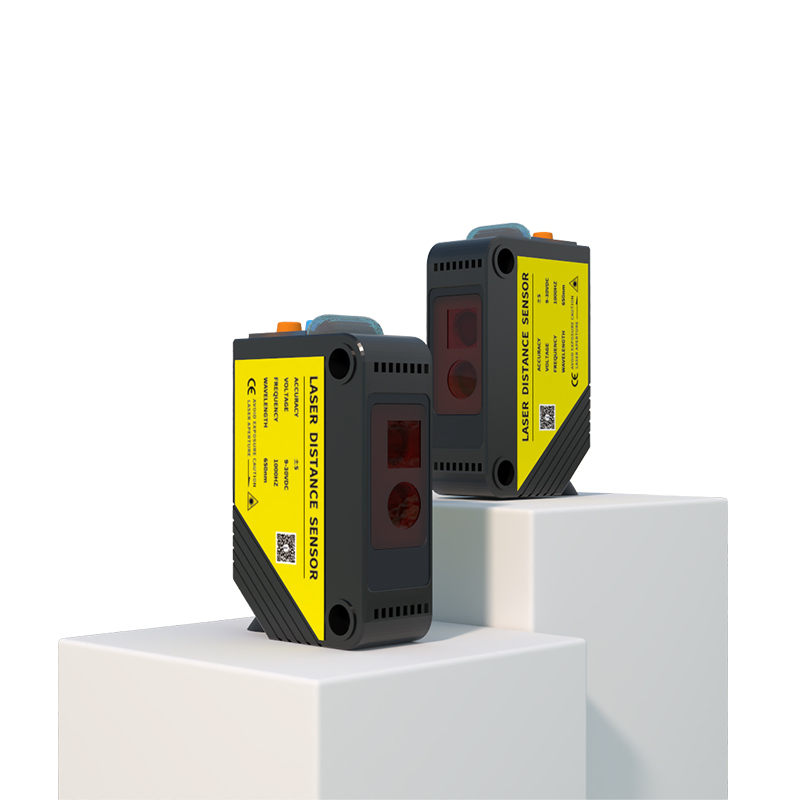
Step 1: Identify the Manufacturer’s Official Website
Start by visiting the official site of the sensor brand you are using. Common manufacturers include Banner Engineering, SICK, Omron, Keyence, and Pepperl+Fuchs. Ensure the URL is legitimate (e.g., www.bannerengineering.com or www.sick.com). Avoid third-party aggregators, as they may host outdated or low-quality models. Bookmark the product page from the manufacturer’s catalog for direct access.
Step 2: Navigate to the Product Page or CAD Resource Section
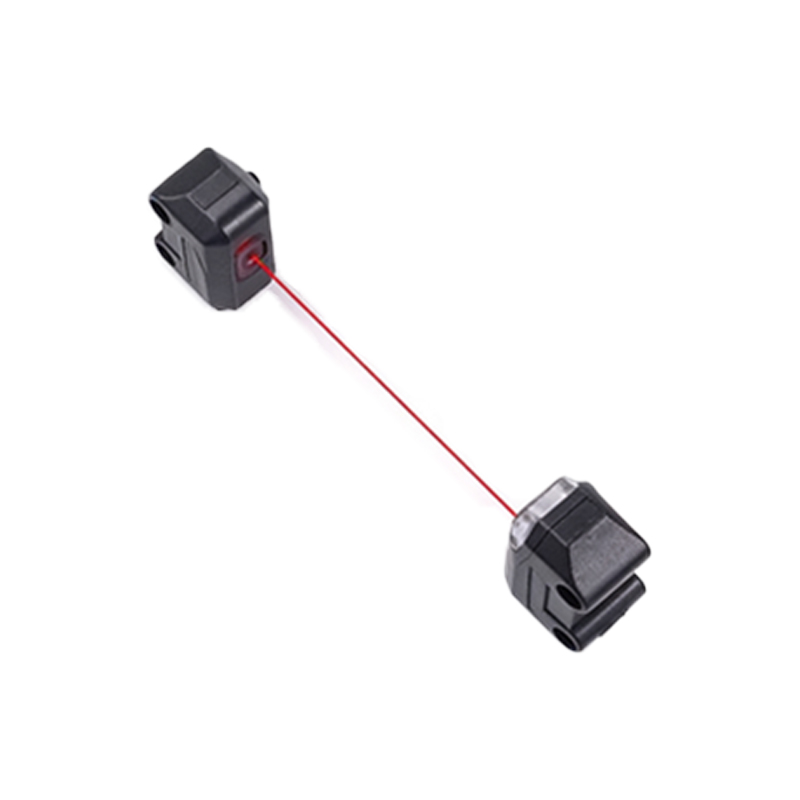
Most manufacturers place 3D CAD downloads under a "Resources," "Support," or "Downloads" tab. Alternatively, search for the specific sensor model (e.g., "QS18" or "WTB4") on the site and look for a "CAD" or "3D Model" button on the product detail page. For example, on SICK’s site, you can filter by "CAD Data" after selecting a sensor series. Some brands, like Omron, require a free account to access models, but this is common and secure.
Step 3: Select the Appropriate File Format for Your Software
Photoelectric sensor 3D models are typically available in formats like STEP (.stp), IGES (.igs), or native SolidWorks (.sldprt). For most engineering workflows, STEP is preferred due to its compatibility with SolidWorks, Autodesk Inventor, and Creo. If your CAD software supports it, download the highest-resolution version. Note that some sites offer simplified models for faster loading, so choose accordingly based on your assembly’s complexity.
Step 4: Verify Model Accuracy and Specifications
Before saving the file, cross-check the 3D model’s dimensions with the sensor’s datasheet. The model should include critical features like mounting holes, indicator LEDs, and lens geometry. If you notice discrepancies, contact the manufacturer’s support team via the "Technical Support" link. For instance, Keyence provides detailed model notes in the download package, which can prevent costly design errors.
Step 5: Download and Manage the Files for Your Project
After selecting the format, click the download button. Some sites may prompt you to accept terms of use or register. Save the file in a structured folder per project, naming it with the sensor model and revision date (e.g., "QS18_3D_v1.stp"). Consider using a PLM (Product Lifecycle Management) system to track these files, especially for large-scale projects with multiple sensor types.
Conclusion: Streamlining Your Design Process
By following these steps—navigating official sites, selecting correct formats, and verifying accuracy—you can integrate photoelectric sensor 3D models seamlessly. This practice reduces prototyping iterations and ensures your design aligns with physical components. For advanced needs, explore manufacturer APIs (e.g., Banner’s CAD portal) for batch downloads.