As an experienced electrical engineer specializing in peripheral devices, I often encounter performance issues in computer mice caused by dust accumulation on the laser sensor. Over time, even minimal debris can interfere with the sensor's ability to track movement accurately, leading to erratic cursor behavior, skipping, or unresponsiveness. This guide provides a professional, step-by-step approach to cleaning a mouse laser sensor safely and effectively, ensuring longevity and precision.
First, understand the components involved. A modern optical or laser mouse uses a light-emitting diode (LED) or laser diode to illuminate the surface beneath it. The sensor, typically a CMOS (Complementary Metal-Oxide-Semiconductor) chip, captures thousands of images per second to detect movement. Dust, lint, or hair can obstruct the light path or lens, degrading image quality and causing tracking failures. Before cleaning, always power off the mouse and disconnect it from the computer to prevent electrical shorts or accidental clicks.
Begin by inspecting the mouse exterior. Use a soft, lint-free cloth to wipe the outer surface, paying attention to the sensor area—usually a small opening on the underside. Avoid using liquids directly on the mouse, as moisture can seep inside and damage circuitry. For stubborn grime, lightly dampen the cloth with isopropyl alcohol (at least 70% concentration), which evaporates quickly and leaves no residue. Gently clean around the sensor opening, but do not insert anything into it yet.
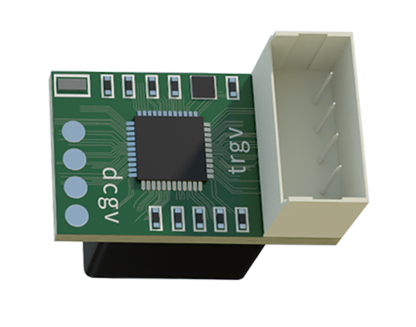
For internal cleaning, you may need to open the mouse casing. Check if your mouse has screws hidden under glide pads or labels. Carefully remove these components and unscrew the casing. Once open, locate the sensor module. It often appears as a small, rectangular component with a lens. Use a can of compressed air to blow away loose dust from the sensor and surrounding PCB (Printed Circuit Board). Hold the can upright to avoid dispensing liquid propellant, which can harm electronics. Alternatively, a soft-bristled brush, like an anti-static brush designed for electronics, can dislodge particles without scratching the lens.
If debris persists on the sensor lens, use a cotton swab lightly moistened with isopropyl alcohol. Gently wipe the lens in a circular motion, then allow it to dry completely—this usually takes a few seconds. Never apply pressure or use abrasive materials like paper towels, which can cause micro-scratches. For lasers, ensure no residue remains, as even faint smudges can distort the light beam. Reassemble the mouse carefully, ensuring all components fit snugly.

Preventive maintenance is key. Regularly clean your mouse pad or work surface, as dust from fabrics or desks can enter the mouse. Consider using a mouse with a dust-resistant design if you operate in dusty environments. Most high-end mice feature sealed sensors, but no device is entirely immune to contamination. After cleaning, test the mouse on various surfaces to verify tracking accuracy. If issues persist, the sensor may be damaged and require professional repair or replacement.
In summary, cleaning a mouse laser sensor is a straightforward task that demands caution and the right tools. By following these steps, you can restore smooth, reliable performance and extend the device's lifespan. Regular upkeep not only enhances user experience but also aligns with best practices in electrical maintenance, reducing e-waste and promoting sustainability.