Laser sensor mice have become a staple in both professional and personal computing due to their high precision and ability to work on a variety of surfaces. However, users often encounter frustrating malfunctions such as erratic cursor movement, unresponsiveness, or complete failure. Understanding the root causes of these issues is essential for effective troubleshooting and repair.
One primary cause of laser mouse malfunction is surface incompatibility. Although laser sensors are designed to track on many surfaces, including glass and glossy finishes, they can struggle with highly reflective, transparent, or patterned surfaces. The laser beam may scatter or fail to detect consistent reference points, leading to jittery or inaccurate tracking. For optimal performance, use a non-reflective, opaque mouse pad with a fine, consistent texture.
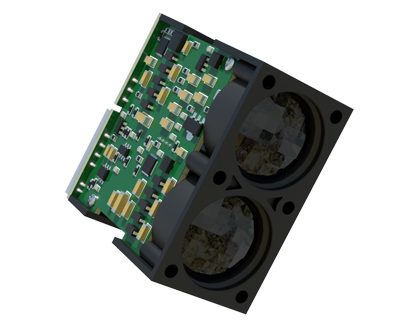
Another common issue is the accumulation of dust, lint, or debris in the sensor aperture. The laser emitter and lens are sensitive to obstruction; even a small particle can disrupt the light path, causing tracking failures. Regular cleaning with compressed air or a soft, dry brush is recommended. Power the mouse off, turn it upside down, and gently blow or brush around the sensor area to remove contaminants.
Internal hardware problems can also lead to sensor failure. Over time, the laser diode may degrade or the sensor's imaging array (which processes surface images) can develop faults. Physical damage from drops or impacts can misalign internal components. If cleaning and surface changes don't resolve the issue, the mouse may have a hardware defect requiring professional repair or replacement.
Software and driver conflicts are frequent culprits. Outdated, corrupted, or incompatible mouse drivers can cause erratic behavior. Access the Device Manager on Windows or System Preferences on macOS to update or reinstall the driver. Additionally, third-party software like mouse configuration utilities or gaming suites can interfere with default settings. Try running the mouse with minimal software or in safe mode to diagnose software-related problems.
Connectivity issues differ between wired and wireless models. For wired USB mice, a faulty or loose cable connection can cause intermittent signals. Inspect the cable for damage and try different USB ports. Wireless mice rely on radio frequency (RF) or Bluetooth connections. Interference from other wireless devices, low battery power, or a problematic USB receiver can disrupt operation. Ensure the receiver is properly inserted, replace batteries, and minimize interference by keeping other wireless devices away.
Firmware glitches, though less common, can affect high-end gaming or programmable mice. Manufacturers occasionally release firmware updates to fix bugs or improve sensor performance. Check the manufacturer's website for firmware update tools and instructions. Incorrect firmware flashes can brick the device, so follow guidelines precisely.
Environmental factors like extreme temperatures or humidity can impact electronic components. Operating a mouse in very hot, cold, or humid conditions might lead to temporary malfunction or permanent damage. Store and use the device in a controlled environment.
Finally, user error in configuration settings, such as incorrect sensitivity (DPI) or polling rate adjustments, can mimic sensor failure. Reset the mouse to default settings via its dedicated software or system controls. For gaming mice, ensure profiles are correctly configured for the active application.
In summary, laser sensor mouse malfunctions stem from surface issues, contamination, hardware faults, software/driver conflicts, connectivity problems, firmware bugs, environmental conditions, or configuration errors. Systematic troubleshooting—starting with simple steps like cleaning and surface testing, then progressing to software and hardware checks—can identify and resolve most problems, restoring precise cursor control.