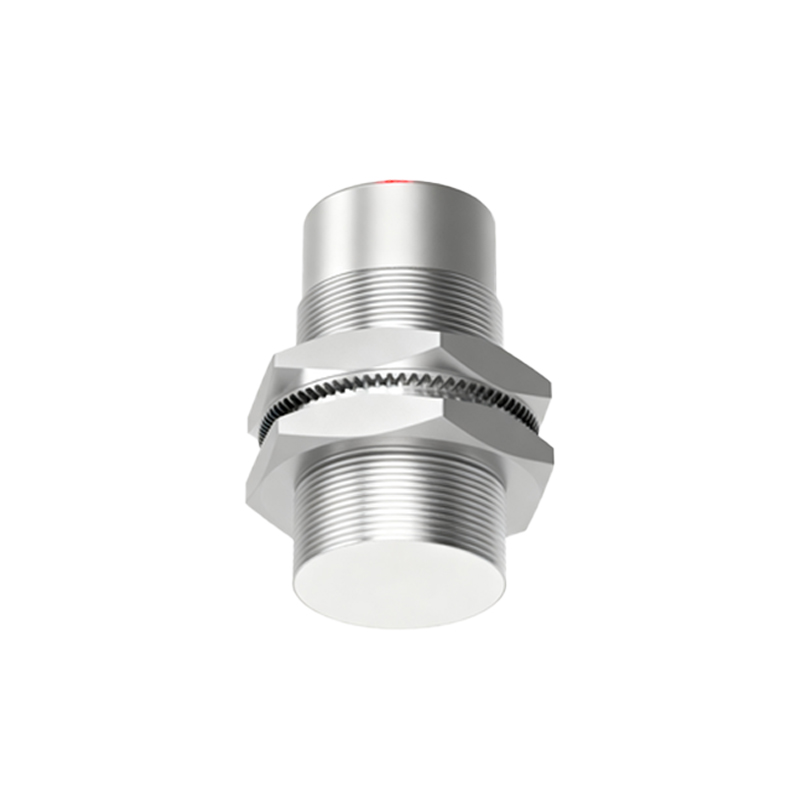
Proximity sensors are integral components in modern smartphones, tablets, and various industrial devices. They detect the presence of nearby objects without physical contact, primarily to turn off the screen during calls to save power and prevent accidental touches. When this sensor malfunctions, it can lead to a range of frustrating issues, such as the screen staying on during calls, turning off unexpectedly, or failing to respond to gestures. Diagnosing and addressing a faulty proximity sensor requires a systematic approach.
The first step is accurate diagnosis. Before assuming hardware failure, rule out software glitches. Begin by restarting your device. A simple reboot can clear temporary software conflicts that may be affecting sensor performance. If the problem persists, check for any pending system software updates. Manufacturers often release patches that fix bugs related to sensor calibration. Next, test the sensor in a diagnostic mode. Most smartphones have a built-in hardware test menu. You can often access this by dialing a specific code (like #0on some Samsung models) or through settings in the "About Phone" section, looking for "Diagnostics" or "Hardware Tests." Here, you can find a proximity sensor test. Typically, you will cover the sensor area (usually near the earpiece) with your hand, and the screen should indicate a change from "Far" to "Near." If there's no response, or if it fluctuates erratically, a hardware issue is likely.
Another common culprit, especially after a screen replacement or a drop, is a misaligned or dirty sensor. The proximity sensor is often located behind the screen, near the front-facing camera. A poorly fitted screen protector, accumulated dust, or debris in the earpiece grill can obstruct the sensor. Carefully clean the top area of the screen and the earpiece with a soft, dry cloth. If you've recently installed a thick or metallic screen protector, try removing it temporarily to see if performance improves.
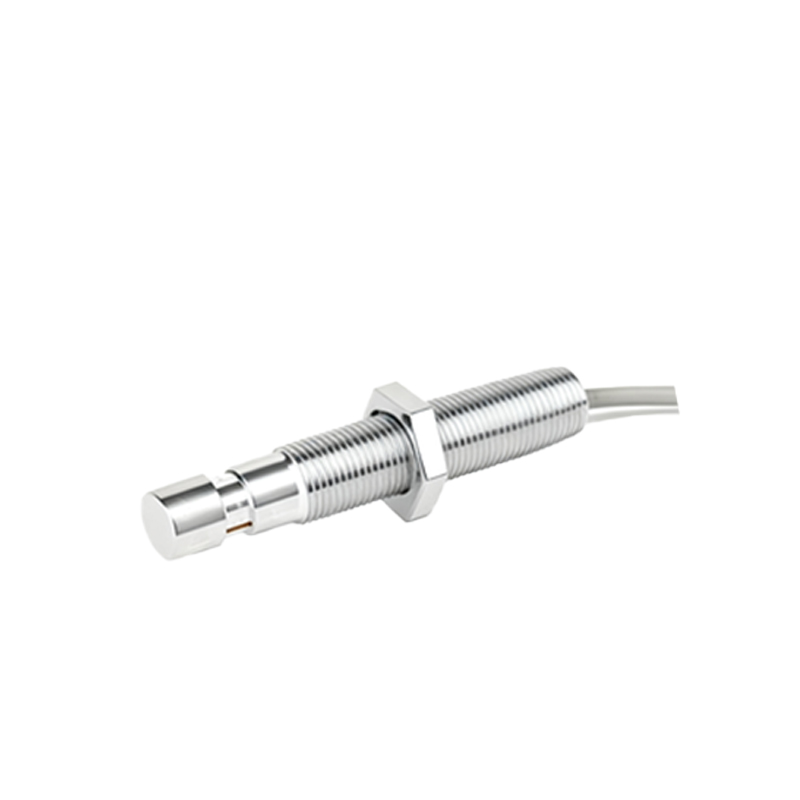
If software and cleaning don't resolve the issue, the problem likely lies with the hardware. The sensor itself could be damaged, or its connection to the device's motherboard might be loose or disconnected. This is particularly common in devices that have been repaired or dropped. For industrial sensors, environmental factors like excessive moisture, extreme temperatures, or physical impact can lead to failure. In such cases, the error might be indicated by specific fault codes or a complete lack of output signal.
Fixing a hardware fault depends on your technical skill. For smartphones, repairing a proximity sensor often involves disassembling the device. In many models, the sensor is part of a front camera flex cable assembly or a separate, small component. Replacing it requires precision tools and knowledge to safely open the device, disconnect the battery, and swap the faulty part. For most users, seeking professional repair from an authorized service center or a reputable technician is the safest and most effective course of action. Attempting a DIY repair without experience risks causing further damage to other components like the display or the motherboard.
For industrial proximity sensors (inductive, capacitive, or photoelectric), troubleshooting follows similar principles. Check the power supply and wiring connections first. Clean the sensor face from any grime or metal shavings that could interfere with detection. Consult the manufacturer's manual to understand the LED indicator patterns, which often signify specific faults. Recalibration might be possible for some advanced models. If the sensor is physically damaged or has failed internally, replacement is usually necessary. Always ensure replacements are compatible with your system's voltage, output type (PNP/NPN), and sensing range.
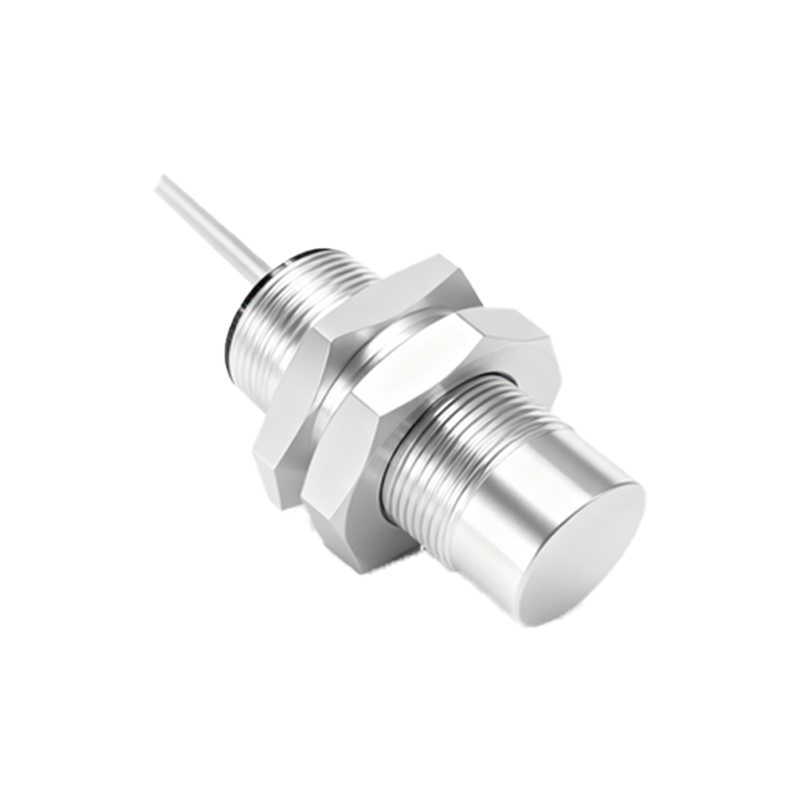
Preventive measures can extend the life of a proximity sensor. Use a well-fitted case that doesn't obstruct the sensor area. Avoid exposing your device to liquids and excessive dust. Handle it with care to prevent impacts. For industrial settings, choose sensors with appropriate ingress protection (IP) ratings for the environment and install them correctly, away from sources of electrical noise or direct physical abuse.
In conclusion, a malfunctioning proximity sensor disrupts core functionality. Start with simple software checks and cleaning. Progress to hardware diagnostics and, if needed, professional repair or replacement. Understanding these steps empowers you to identify the problem accurately and find the most practical solution, restoring your device's intended behavior and ensuring reliable operation.